October 22, 2026
In this article, we will cover:
- Why Hyperzod is easy to integrate with Tapfiliate
- What you need before starting the integration
- Step-by-step setup for tracking and webhook configuration
- Testing and verification
Overview
Tapfiliate can be integrated with Hyperzod to enable affiliate referral tracking and automated commission attribution.By connecting your Tapfiliate account to Hyperzod, you can track affiliate referrals, manage partners, and reward affiliates automatically when a customer completes an order.
The integration works through three main steps:
- Connecting your Tapfiliate credentials inside Hyperzod
- Adding the Tapfiliate tracking script to your storefront
- Configuring an order webhook to notify the affiliate system when an order is completed
Pros
- Native integration available in Hyperzod
- Allows automated affiliate tracking and rewards
- Works with completed order events
- No custom development required
Cons
- Requires adding the Tapfiliate tracking script to your storefront
- Requires configuring a webhook inside Hyperzod
Hyperzod Integration Prerequisites
Before starting the integration, make sure you have the following:- A live Tapfiliate account
- Your Tapfiliate API Key
- Your Tapfiliate Account ID
- Access to your Hyperzod admin panel
https://support.tapfiliate.com/en/articles/12793297-how-to-find-account-id-and-api-key
Setting Up the Hyperzod Integration
You will configure:- Tapfiliate credentials
- Click tracking via JavaScript
- Order conversion tracking via webhook
Step 1: Add Tapfiliate Credentials in Hyperzod
After creating your Tapfiliate account, log in to your Hyperzod admin panel.Navigate to:
Admin Panel → Apps → Loyalty
In the Tapfiliate configuration section:
- Select the Live Environment
- Enter your API Key
- Enter your Account ID
- Click Save Configuration
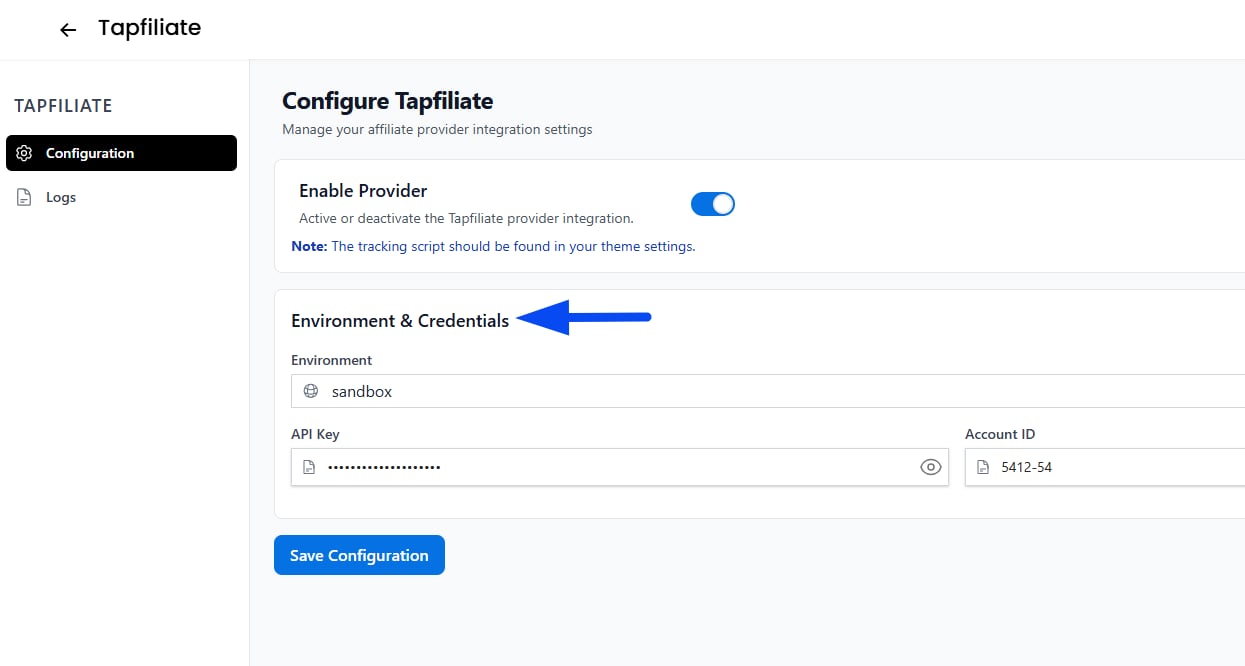
Step 2: Embed the Tapfiliate Tracking Script
Next, you must add the Tapfiliate tracking script to your storefront so affiliate referrals can be detected. Get the official Tapfiliate JavaScript tracking script from:https://support.tapfiliate.com/en/articles/13111065-how-to-integrate-with-tapfiliate-via-javascript After copying the script, replace:
Admin Panel → Settings → Theme → Custom Code → Custom HTML Head
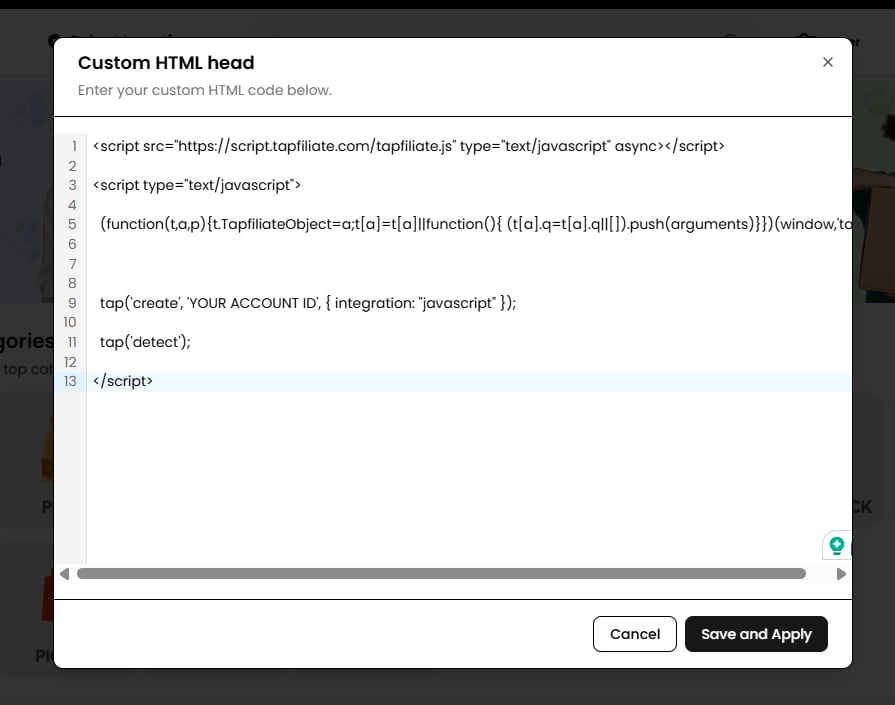
This script allows Tapfiliate to detect visitors who arrive via affiliate referral links.
Step 3: Configure the Order Webhook
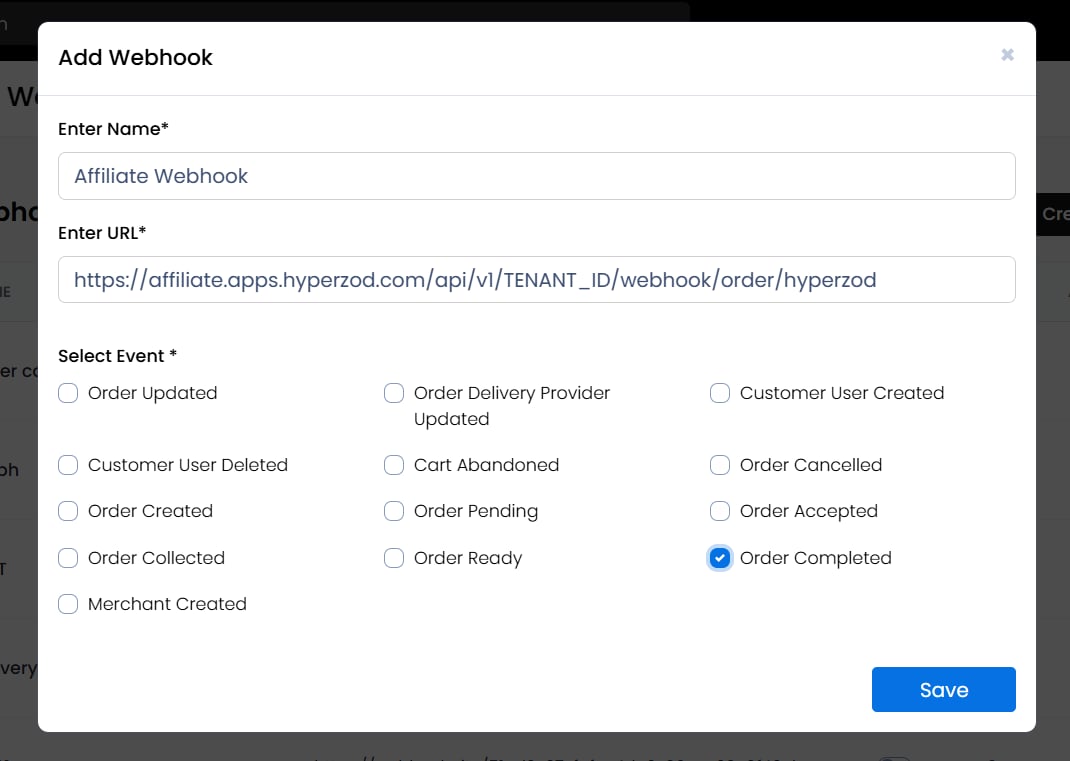
To track conversions when an order is completed, you must configure a webhook in Hyperzod. Navigate to:Admin Panel → Settings → Webhooks & API Keys Create a new webhook with the following configuration.
Webhook Name
Webhook URL
Event
Select the event: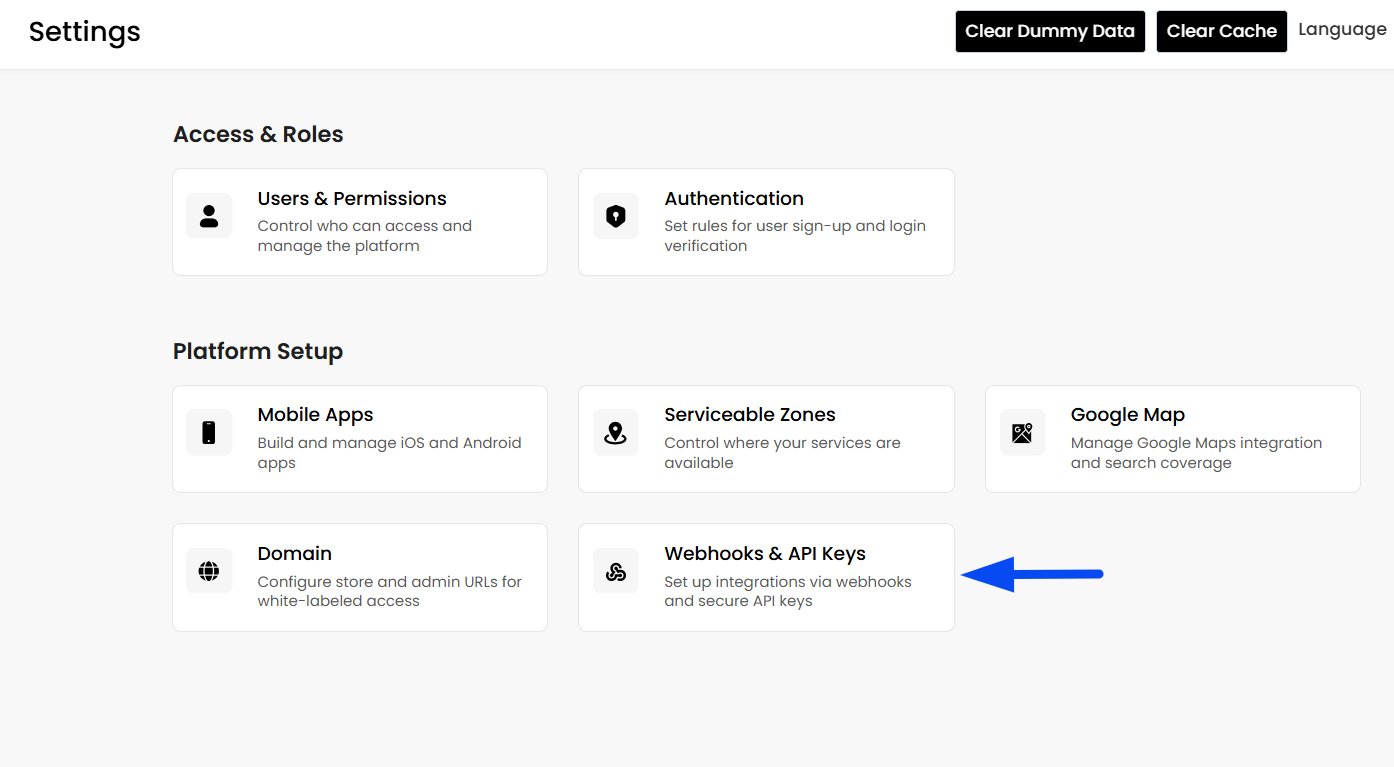
Testing and Verification
Follow these steps to verify that the integration is working correctly.- Create a test affiliate inside Tapfiliate.
- Generate the affiliate referral link.
- Visit your Hyperzod storefront using the referral link.
- Complete a test order.
- Confirm that the order event is recorded and attributed to the affiliate.
What Happens Next
Once the integration is configured:- Affiliates can promote your store using Tapfiliate referral links.
- Completed orders in Hyperzod trigger the webhook.
- Tapfiliate attributes the conversion and calculates commissions.
Still Need Help?
If you have any questions or need help setting up the integration, please contact:📩 support@tapfiliate.com Our team will be happy to assist you.