November 9, 2026
In this article, we will cover:
- Why GoHighLevel is easy to integrate with Tapfiliate
- What you need before starting the integration
- Step-by-step setup for both click tracking and conversion tracking
- Advanced optional features
- Testing and Verification
Overview
Tapfiliate can be seamlessly integrated with GoHighLevel (GHL) to enable affiliate click tracking, conversion attribution, coupon/referral-code attribution, and customer-lifetime tracking. By combining page-level Tapfiliate JavaScript with GoHighLevel’s Webhook automation actions, you can create a powerful, automated affiliate tracking system without requiring a native integration. Pros:- No plugins needed
- Fast setup
- Clean attribution using referral/coupon codes
- Works for funnels, websites, forms, and checkout pages
- API-based conversion tracking is extremely reliable
- Requires adding code to page headers
- Requires setting up custom fields
- Does not automatically track SKU or product-level commissions
- Incorrect webhook setup can prevent conversions from firing
GohighLevel integration Prerequisites
To successfully integrate, ensure you have the following:- A live Tapfiliate account with your Account ID and API Key
- A GoHighLevel account with:
- Access to Funnels / Websites → Custom Code
- Access to Workflows
- Access to custom Webhook actions
- A referral code or coupon code created inside Tapfiliate and assigned to an affiliate
- A custom field in GHL to collect that referral code (e.g., Referral Code)
Setting up the GoHighLevel integration
You will configure:- Click tracking (page-level)
- Conversion tracking (workflow-level via webhook)
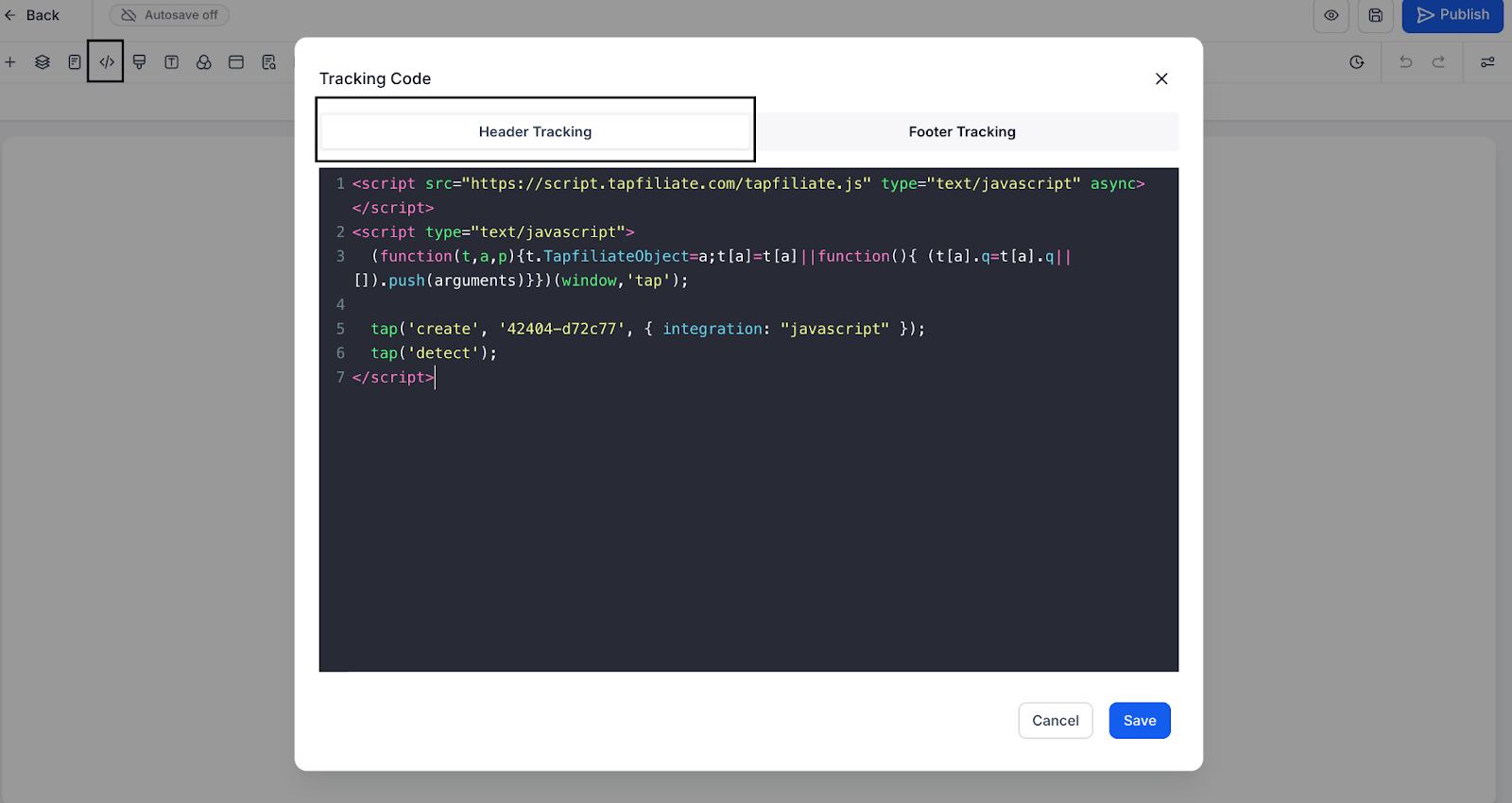
Sites → Funnels → Settings → Custom Code → Head and paste this code:
Settings → Custom Fields → Create Field → Input Field
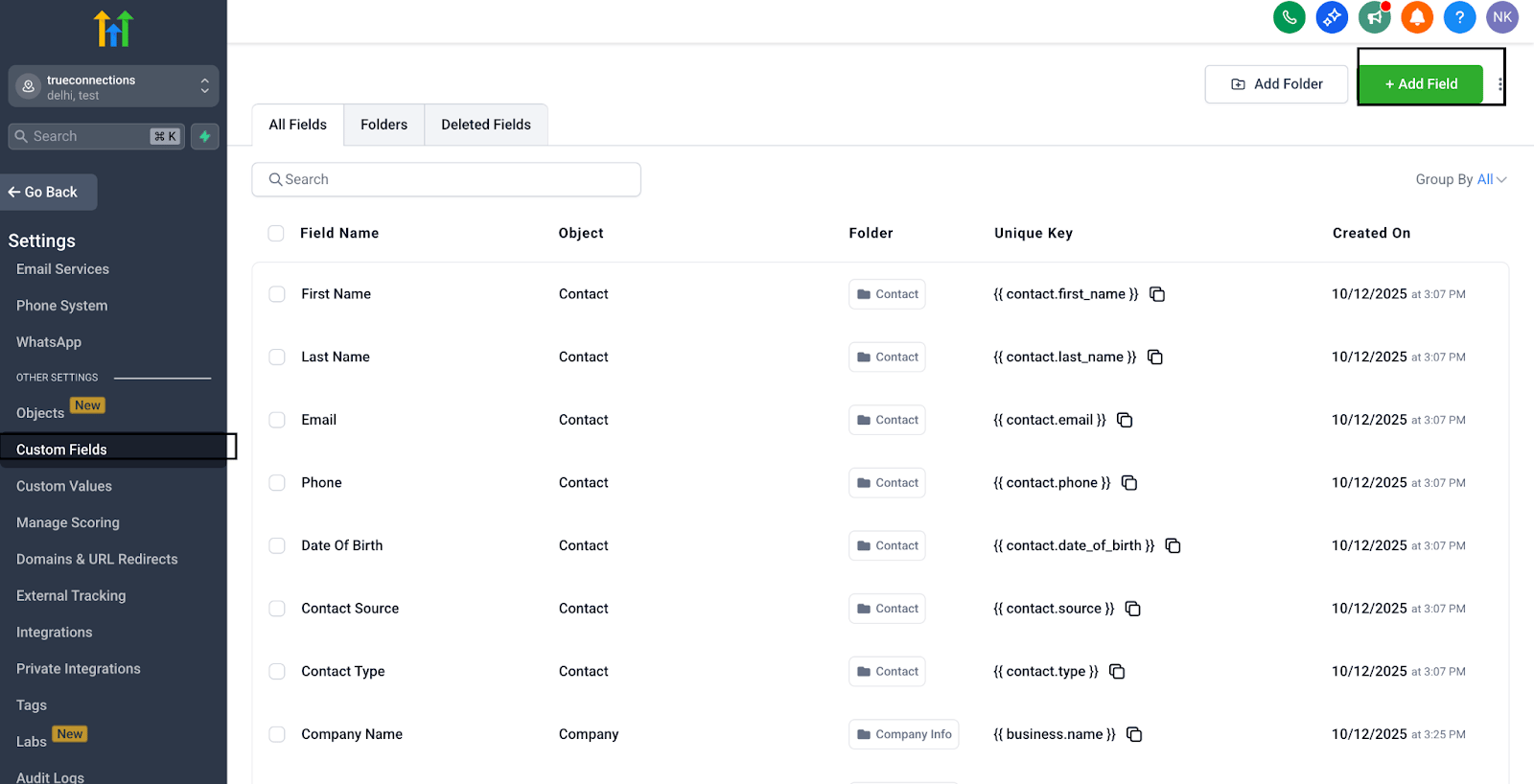
- Label: Referral Code
- Field Name: referral_code
Inside GHL:
- Go to Automations → Workflows
- Click Create Workflow
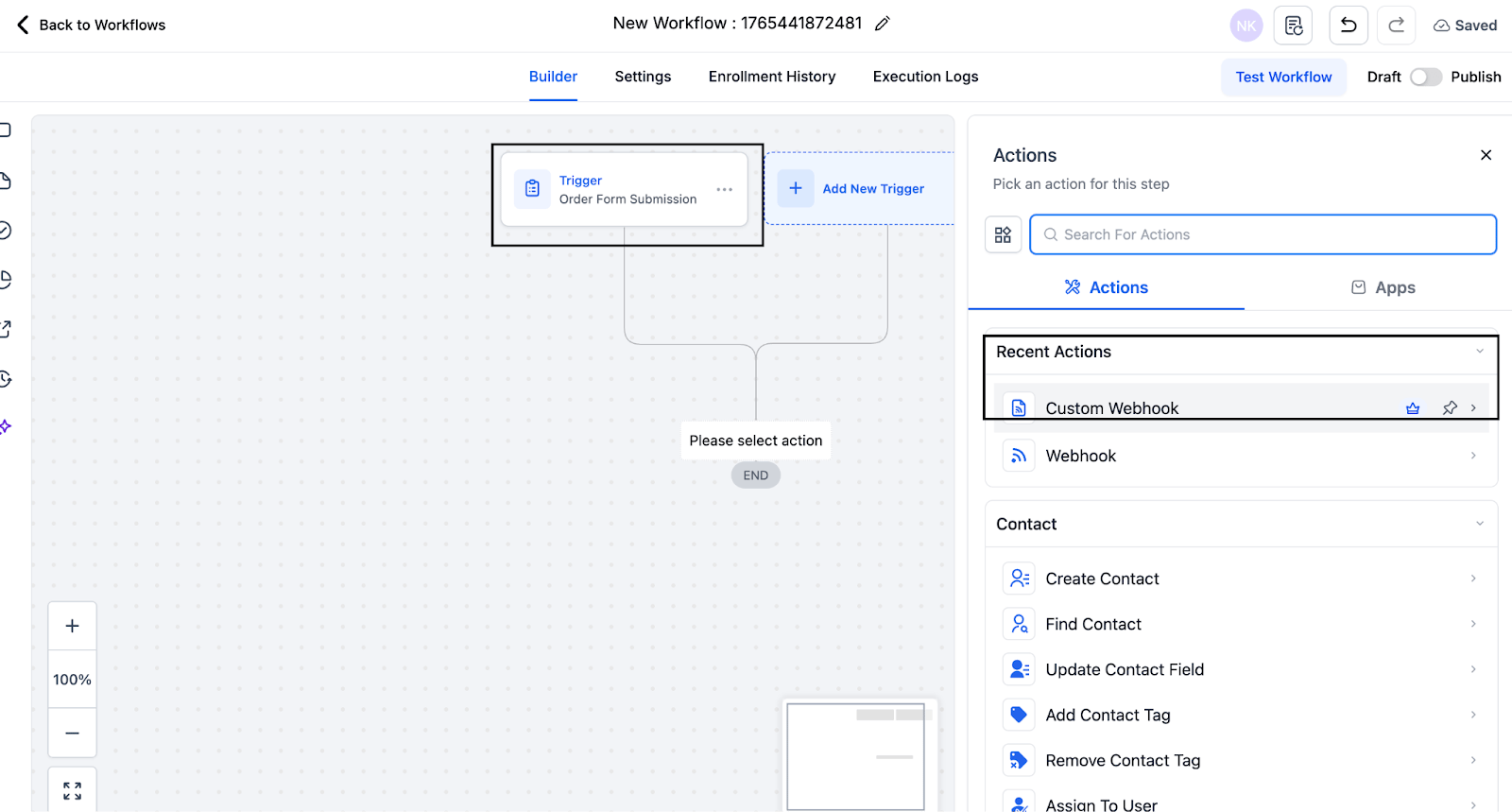
- Add a trigger such as:
- Form Submitted
- Order Submitted
- Tag Applied (“Purchased”)
- Click + Add Action
- Choose custom webhook
https://api.tapfiliate.com/1.6/conversions/ Headers Content-Type: application/json
x-api-Key: YOUR_API_KEY Replace YOUR_API_KEY with your Tapfiliate API key. JSON Body (Referral-Code Based Conversion)
- #{{contact.referral_code}} is the code your customer enters
- Tapfiliate matches this to the correct affiliate
- Replace UNIQUE_ORDER_ID with a merge field that is unique for every purchase, such as the order or opportunity ID. Don’t use the contact’s email: Tapfiliate rejects a second conversion with the same external_id as a duplicate, so the contact’s next purchase would not be tracked.
Advanced or Optional Features
1. Add Metadata to Conversions: You can send purchase info with the conversion (don’t send personal data such as names or phone numbers):Webhook URL: HTTP Request: DELETE
https://api.tapfiliate.com/1.6/commissions/{commission_id}/approved/
Testing and Verification
Follow these steps to ensure tracking is set up correctly:1. Create a Test Affiliate in Tapfiliate: Generate a referral link + referral code.
2. Click the referral link: Confirm the click appears inside Tapfiliate.
3. Submit your GHL form: Enter the referral code you created.
4. Trigger a purchase: Ensure the Workflow webhook fires.
5. Verify the conversion: Check your Tapfiliate dashboard → Conversions. It should show the correct affiliate, the revenue amount and any metadata sent. Still need help?
If you have any questions or if something in this guide is unclear, please contact us at: 📩 support@tapfiliate.com. We’re happy to assist!