September 16, 2026
Tapfiliate sends a default welcome email upon approval, but for better branding and control, you will want to replace it with a custom message that truly reflects your brand - using triggers.
Why Use Triggers?
Our Triggers feature allows you to step in and replace that basic message with your own, personalized communication flow. In simple terms, a Trigger is the system’s automation engine: it lets you tell the platform, “When this event happens (e.g., Affiliate Approved), send this specific email (your custom Welcome Message).” This ensures your branded message is sent instantly every time, without any manual work.- Step 1: Disable the Default Email
- Step 2: Create a New Trigger
- Step 3: Define the Trigger Event
- Step 4: Add the Email Notification
- Step 5: Save and Activate
- Next Steps
- Navigate to Programs > General Settings in the main menu.
- Scroll down to the Notification settings section.
- Locate the option: “Send my affiliates an email when they are approved for a program.”
- Toggle this option Off to disable the default email sent by Tapfiliate.
- Go to Settings > Trigger emails& webhooks from the main dashboard menu.
- Click the + New Trigger button at the top right of the screen.
- Under the “Trigger when this happens” section, select the event: “Affiliate approved for program.”
- “Added” means the affiliate has been placed into the program (e.g., via CSV import or API), but they might still be pending approval.
- “Approved” means the affiliate has been fully vetted and is ready to start promoting and earning commission.
- Click the Email Notification button under the “Do the following” section.
- Add the Subject of the email, for example:(e.g., Welcome to the [Your Company Name] Affiliate Program!). Note: There are no specific length or character limits for this field.
- Customize the body of the email with a welcoming message for your new affiliates. Note: There are no specific length or character limits for this field.
You have full control over the email body content:
- No Restrictions: The email body field has no practical limits on content length or character count.
- Rich Media: You can insert buttons (with custom text and URLs) and images directly into your message to enhance engagement.
[Subject]: Your [Your Company Name] Partner application is under review Hi [Affiliate Name], We’re honored that you want to partner with us. Thank you for applying to the [Your Company Name] Partner Program. [Image: A high-quality lifestyle photo or product shot representing your brand’s ethos] This email confirms we’ve received your application. Our team personally reviews each applicant to ensure a strong partnership fit and will notify you of our decision within [e.g., 3-5 business days]. While you wait, see what makes our brand different: [Link to Your Brand Story or Pillar Content]. We’re excited to review your application and will be in touch soon.
The [Your Company Name] Team 2. [Template] Affiliate Disapproved Goal: To politely decline while preserving a positive brand image and keeping the door open.
[Subject]: An update on your [Your Company Name] application Hi [Affiliate Name], Thank you for your interest in our Partner Program. This decision is never easy, as we truly appreciate the time and effort every applicant puts in. After a review, we couldn’t approve your application at this time as it doesn’t meet our current program requirements. We encourage you to reapply in the future if your platform evolves. We genuinely wish you the absolute best with your platform and future projects.
The [Your Company Name] Team
Personalizing Your Email with Variables
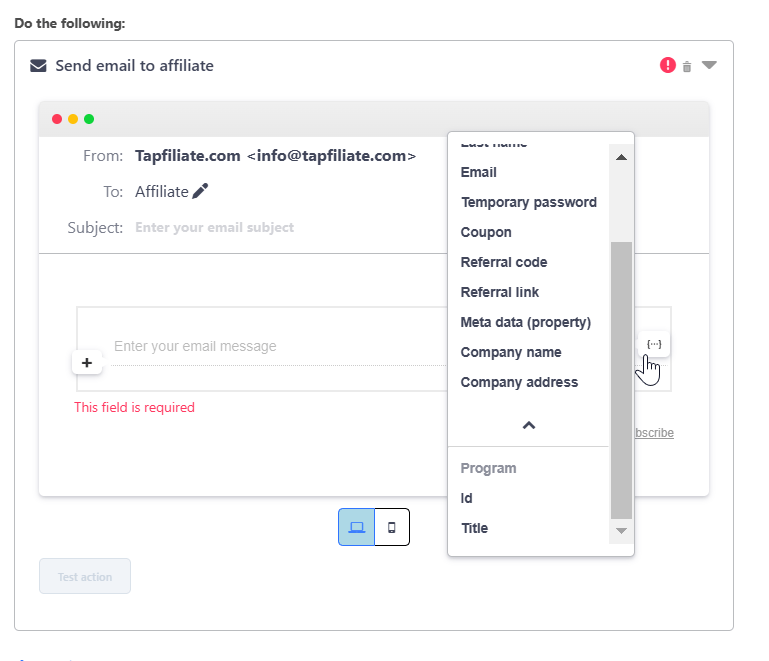
When setting up the email, click on the {…} icon to view all available variables for both the affiliate and the program. These variables allow you to personalize the welcome email automatically based on the affiliate’s details and program information, such as:Affiliate:
- ID, Name, Email, Password, Coupon, Referral Code, Referral Link, etc.
- ID, Title
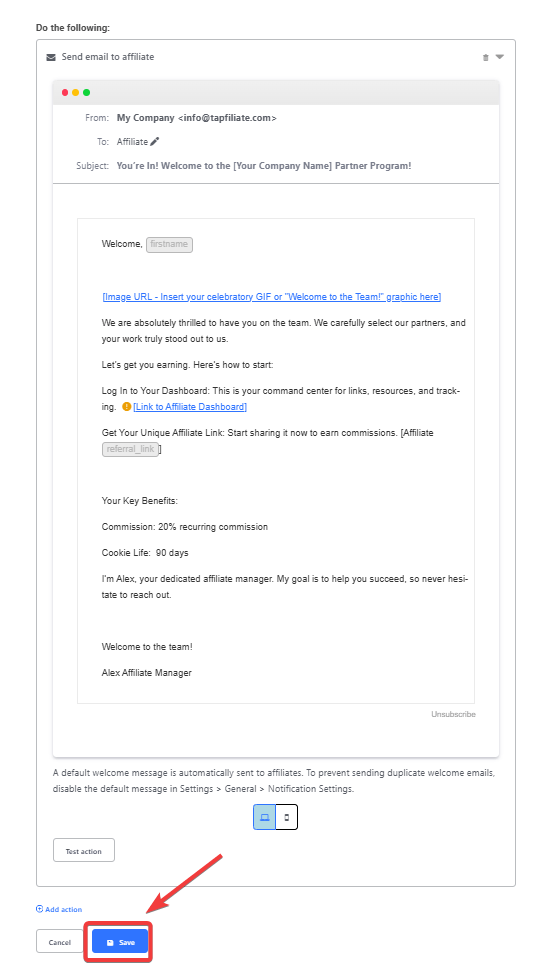
- Once you’re happy with your settings, click Save to activate your welcome email trigger.
Still need help?
If you have any questions or if something in this guide is unclear, please don’t hesitate to contact us at support@tapfiliate.com-we’re happy to assist! You have successfully customized your affiliate welcome experience!- Next: Learn How to Customize Affiliate Sign-up Fields? to start building your partner base.