October 15, 2026
- The Affiliate Application Process
- Managing Program Applications
- Automation and Advanced Approval
- Managing Active Affiliates
- Next Steps
What are Pending Affiliates and what actions are required?
The Pending status means an affiliate is waiting for you to make a decision. This part of the process is your final control point, regardless of whether you use manual or automatic approval settings.Affiliates in this folder require one of two actions:
- Approve: The affiliate gains the Active status, full access to all program assets (referral link, banners, etc.), and can start earning commissions.
- Disapprove: The affiliate is rejected (status becomes Archived) and cannot participate in the program.
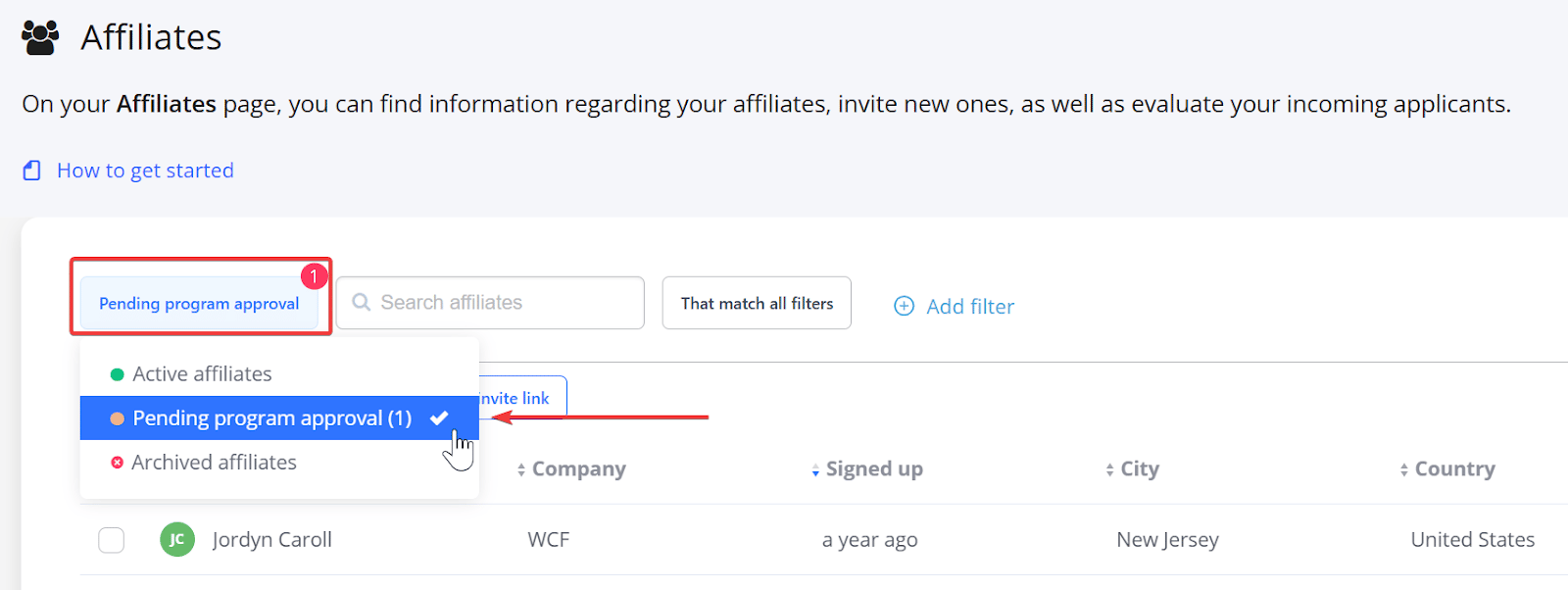
When an affiliate is rejected (disapproved), their status changes to Archived.
It is important to know that the Archived status does not permanently delete them from the system; rather, it serves as a record of their rejection. If you decide to accept them at a later date, you can easily change their status back to Active from their profile page.
Application Process Summary
When a user signs up, they are initially given the Pending status. You must then choose to:- Approve → Status changes to Active.
- Disapprove → Status changes to Archived.
Approving/Disapproving a Single Affiliate
-
Click on the affiliate’s name to open their details panel on the right side of the screen.
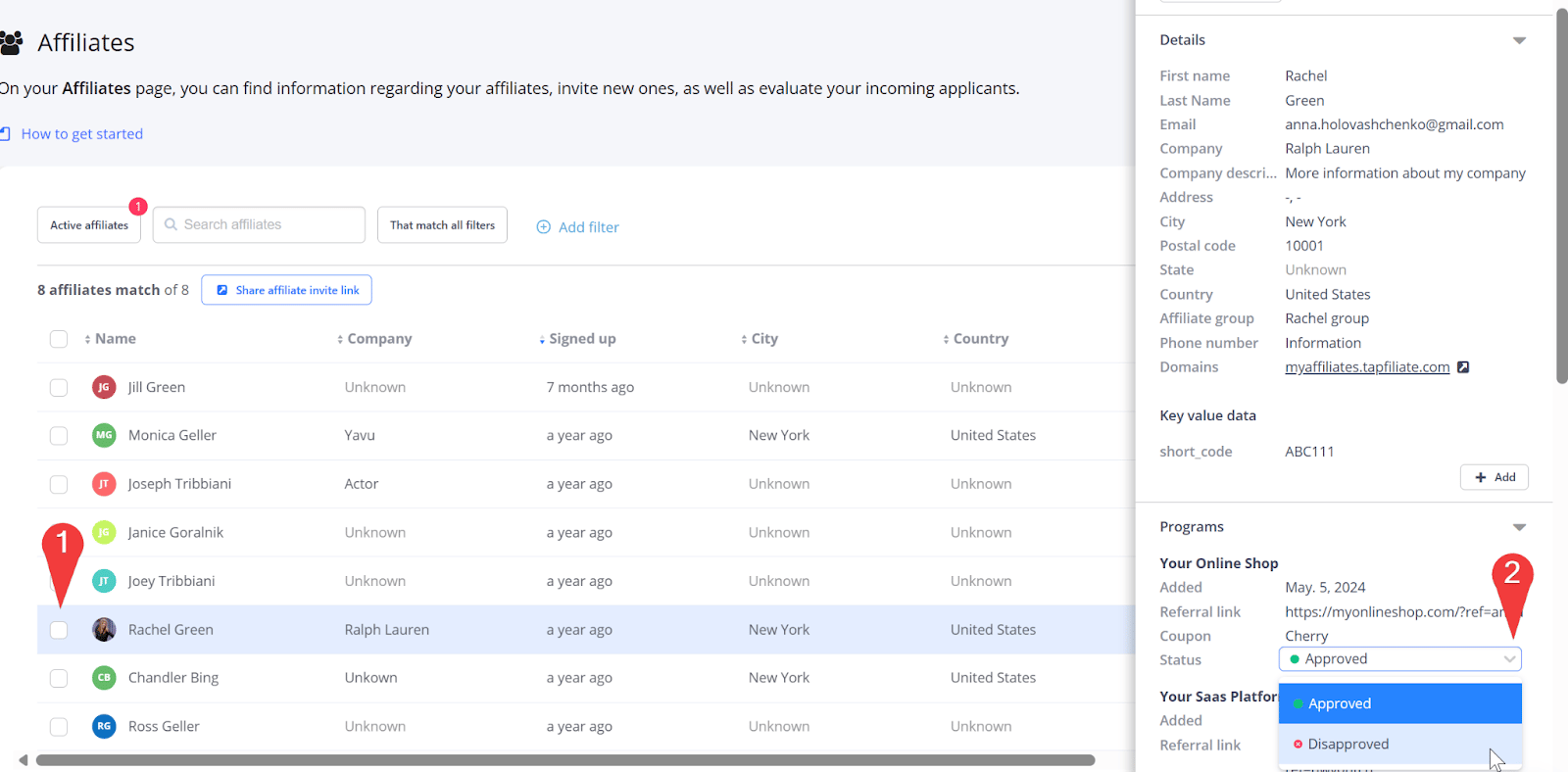
- In the Programs section, find the program they applied for.
- Click on the current status (Pending).
- In the dropdown menu, select Approve or Disapprove.
Approving/Disapproving in Bulk (Batch Management)
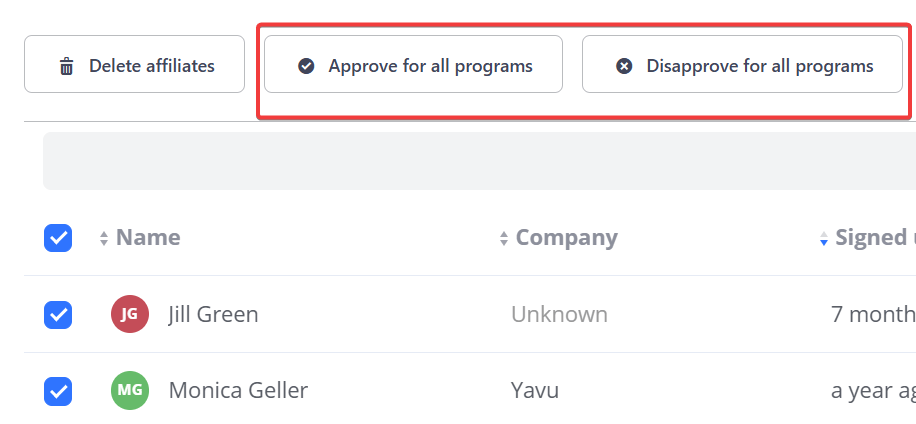
You can manage multiple applications simultaneously by using the batch management feature on the Affiliates Overview page.- Select multiple affiliates by checking the boxes next to their names, or Select All if you have more than 100 pending applicants.
- Two buttons, Approve and Disapprove, will appear near the top of the table. Click the relevant action.
What is the difference between Approving and Adding an affiliate to a program?
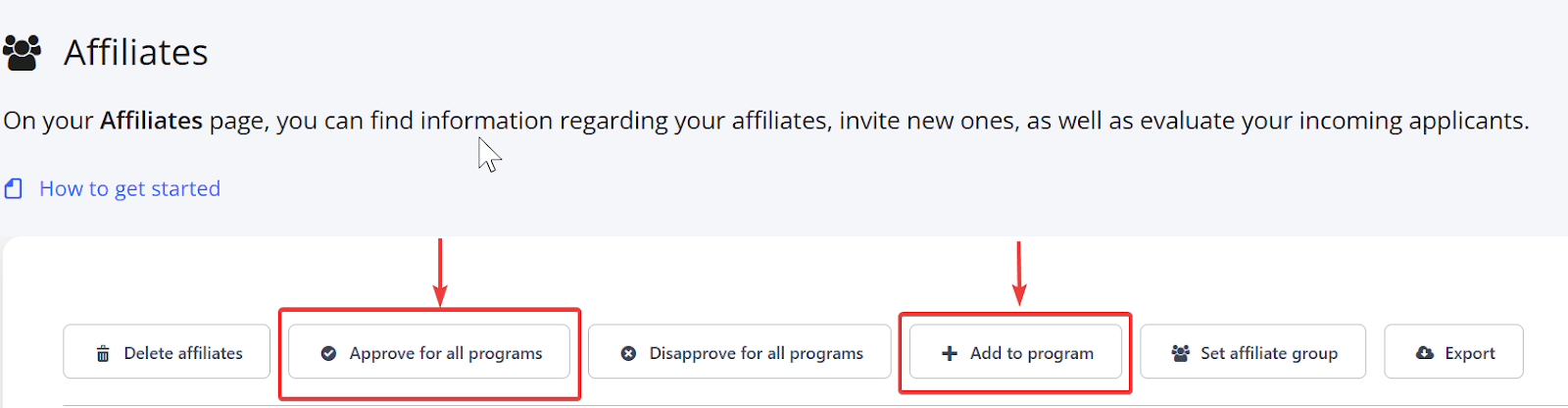
- Approve: You approve an affiliate who has already requested to join. This moves them from the Pending Program Approval tab to Active Affiliates.
- Add to Program: You can add an affiliate to a program if they were not a part of it beforehand. When adding an affiliate this way, they are automatically approved, and their unique program assets are generated instantly.
Automating Approval
For a standard, hands-off approach, you can set up automatic approvals:- Go to Programs > General Settings
- Toggle the Automatically approve affiliates option On.

If you require specific filters or conditions to be met (e.g., specific country or website traffic criteria), you can set up customized auto-approvals using Triggers, a webhook action, and our REST API. A developer can reference our advanced Trigger Webhook guide for more information.
Disapproving an Affiliate After Approval
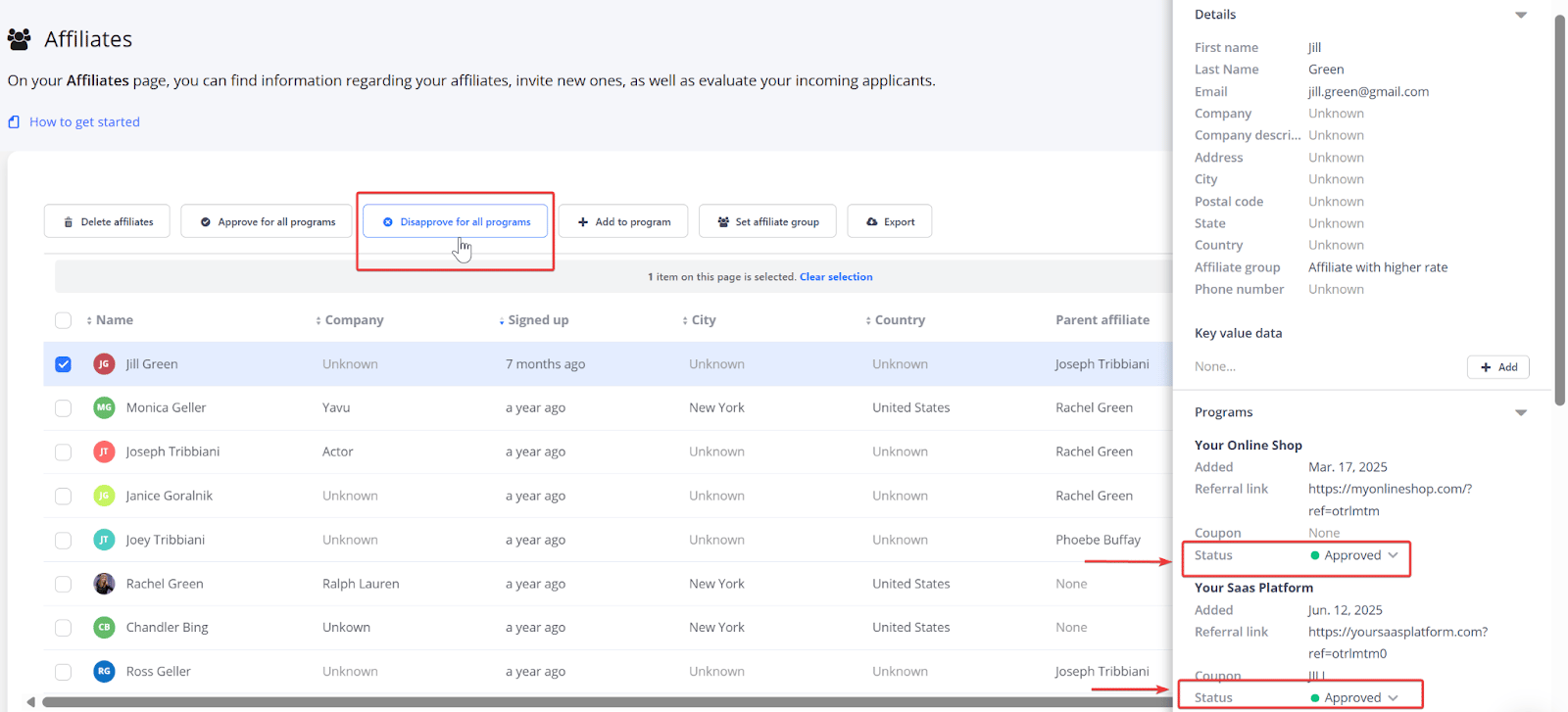
You can easily remove an active affiliate from a program:- Bulk Disapproval: Check the box next to the affiliate’s name. The Disapprove (all) option will appear near the top.
-
Single Program Disapproval: If the affiliate is part of multiple programs, click on their name to open the details panel. Click on the Approved status for the specific program and select Disapprove from the dropdown menu.
Re-approving an Archived Affiliate
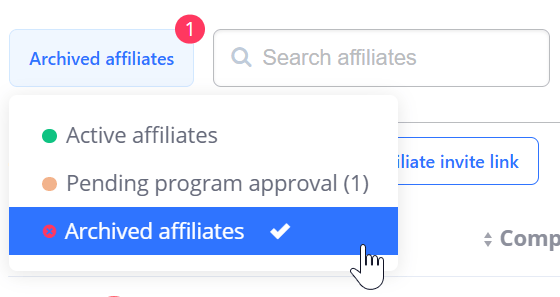
You can re-approve a previously disapproved (archived) affiliate:- In your Affiliates Overview, change the filter from Active affiliates to Archived affiliates.
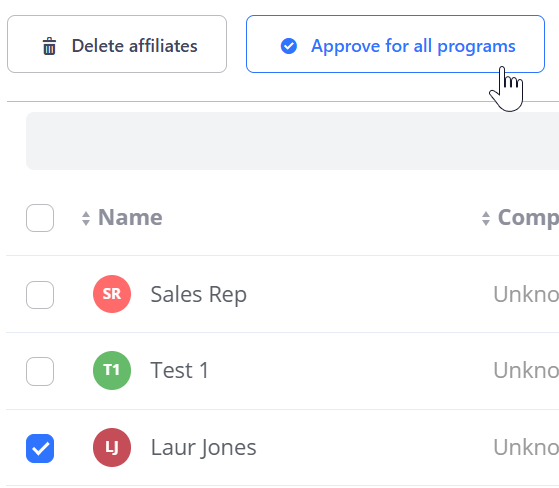
- Check the box next to the affiliate’s name.
- Click the Approve for all programs option that appears at the top.
Still need help?
If you have any questions or if something in this guide is unclear, please don’t hesitate to contact us at support@tapfiliate.com-we’re happy to assist! You have successfully learned how to manage your program membership.- Next: Learn How to Customize Your Affiliate Sign-Up?