September 16, 2026
In the Reporting tab of your Tapfiliate account, you can dive deep to create detailed reports—find answers to your key questions, track your program’s performance, and uncover new opportunities for growth and optimization.Here’s the type of reporting you can access in your account:
- General overview - Get a clear overview of your affiliate program performance — including the number of active affiliates, the conversions they generate, total commissions driven through the affiliate channel, a country-by-country breakdown of where conversions come from, which marketing materials perform best, conversion rates, and more.
- Date – Generate reports to see how your affiliate-driven revenue performs daily, weekly, or monthly.
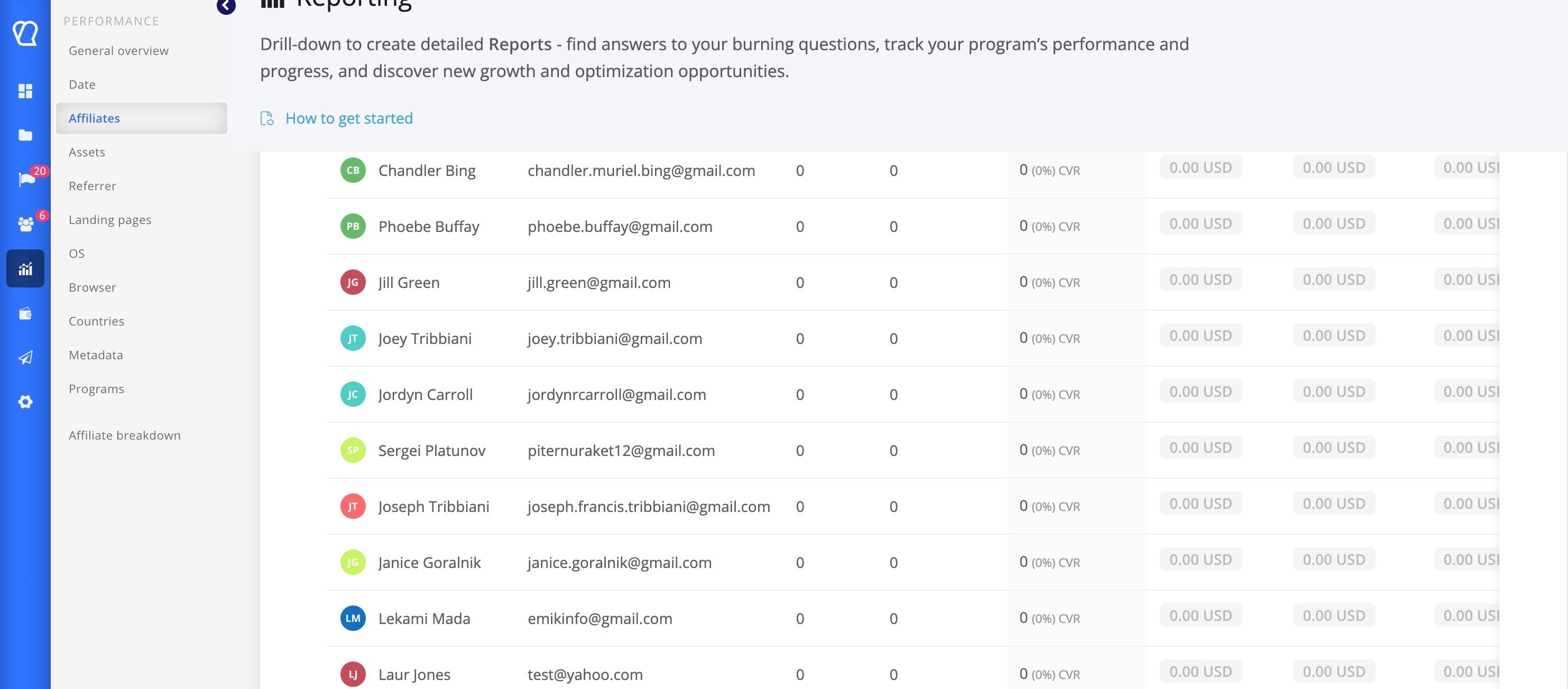
- Affiliates – Review your top performers and compare their results against other affiliates. You can also view each affiliate’s email address directly in the report and in the exported file.
The Affiliates report includes affiliates with zero activity. This means all affiliates who were approved for the program will appear in the report, even if they generated no clicks or conversions. This gives you a complete view of your affiliate program for any timeframe, helps you quickly identify inactive affiliates, and makes it easier to run reactivation campaigns.
The report now also includes affiliates who were eligible to generate activity during the selected period, even if they didn’t have any. We first identify all affiliates approved and then display their performance data, including clicks, conversions, and revenue, or zeros if there was no activity. Exports match exactly what you see in the table. - Marketing Assets – Learn which marketing assets drive the most clicks and conversions.
- Referrer – Understand where your affiliate-driven audiences first interact with your brand.
- Landing pages – Find out which landing pages generate the most revenue. See where your affiliates are sending traffic and which pages convert best.
- OS – Identify potential friction points and see how users convert across different devices and browsers.
- Browser - Identify potential friction points and see how users convert across different browsers.
- Countries – Discover where your affiliate-driven customers are located.
- Metadata – If you’re tracking metadata with your conversions, you can now sort by metadata keys. This is especially helpful for understanding which products or categories your affiliate-driven customers are most interested in. Here’s a detailed article about Metadata feature.
- Programs - see the results separately for every program if you manage multiple programs.
- Affiliate breakdown - Understand how actively potential affiliates are signing up for your program, which countries they come from, how they are distributed across affiliate groups (if applicable), and how actively your affiliate prospect is being promoted to them (if you’re building a referral program and using the Affiliate Recruitment feature).
Navigate to Reports - Date:
Conversion Status Filter
A button labeled “All conversions” lets you filter by status:- All conversions
- Approved conversions
- Pending conversions
- Disapproved conversions
Filter Matching Mode
You can choose how multiple filters are applied:- Match all filters – Only shows data that meets every selected filter.
- Match any filters – Shows data that meets at least one of the selected filters.
Filters Dropdown
The “Add filter” dropdown lets you narrow down your report data using these criteria:- Platform – Filter by device type (desktop, mobile, tablet).
- OS – Filter by operating system (e.g., Windows, macOS, iOS, Android).
- OS version – Filter by specific OS versions.
- Browser – Filter by browser type (e.g., Chrome, Safari, Firefox).
- Browser version – Filter by specific browser versions.
- Referrer – Filter by the source that referred the visitor (website, campaign, or URL).
- Landing page – Filter by the page where visitors first arrived.
- Conversion page – Filter by the page where conversions occurred.
- Country – Filter by visitor’s geographic location.
- Asset type – Filter by the type of affiliate asset used (banner, link, email, etc.).
- Affiliate – Filter by specific affiliate.
- Program – Filter by a specific affiliate program.
Date Range Selector
- A calendar input allows you to choose a custom date range for your report:
- You can also aggregate data by Days, Weeks, or Months, depending on how you want to view trends:
Currency Selector
There’s a currency dropdown that lets you display all amounts in your preferred currency. This is especially useful if you have conversions recorded in multiple currencies.Export Option
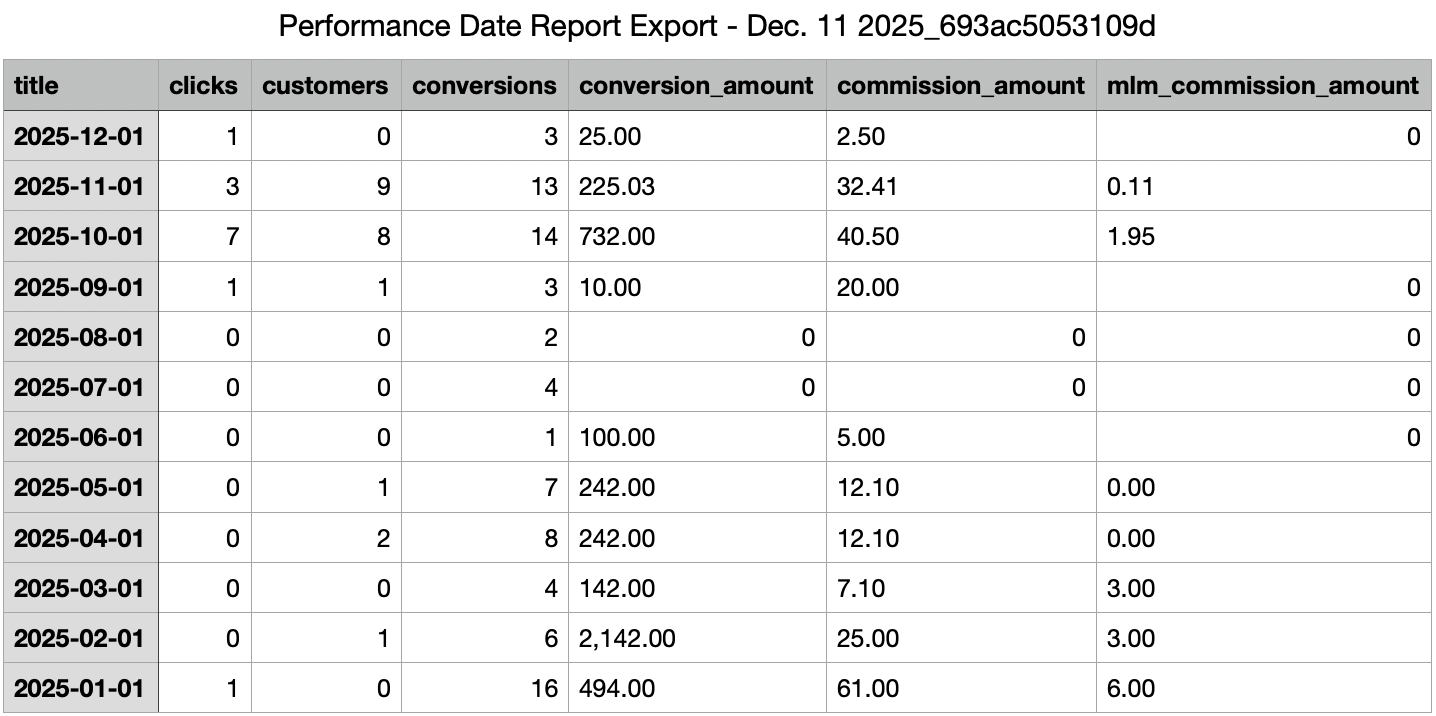
The Export button lets you download your filtered report, typically in CSV or Excel format, for further analysis or record-keeping. Here’s what the exported file looks like: