November 9, 2026
What this guide covers
- What the Commissions report is and where to find it
- How to review, approve, and manage commissions
- Why the bulk action was moved to commissions section
- How commissions relate to conversions and what affiliates can see
Commissions Report Overview
The Commissions report is where you manage the rewards earned by affiliates for driving conversions. Each commission represents a potential payout that can be reviewed, approved, rejected, or exported.This report helps you:
- Review affiliate earnings before payouts
- Approve or reject commissions in bulk
- Track recurring, bonus, or other commission types
- Keep internal notes related to commission reviews
Where to find the Commissions report
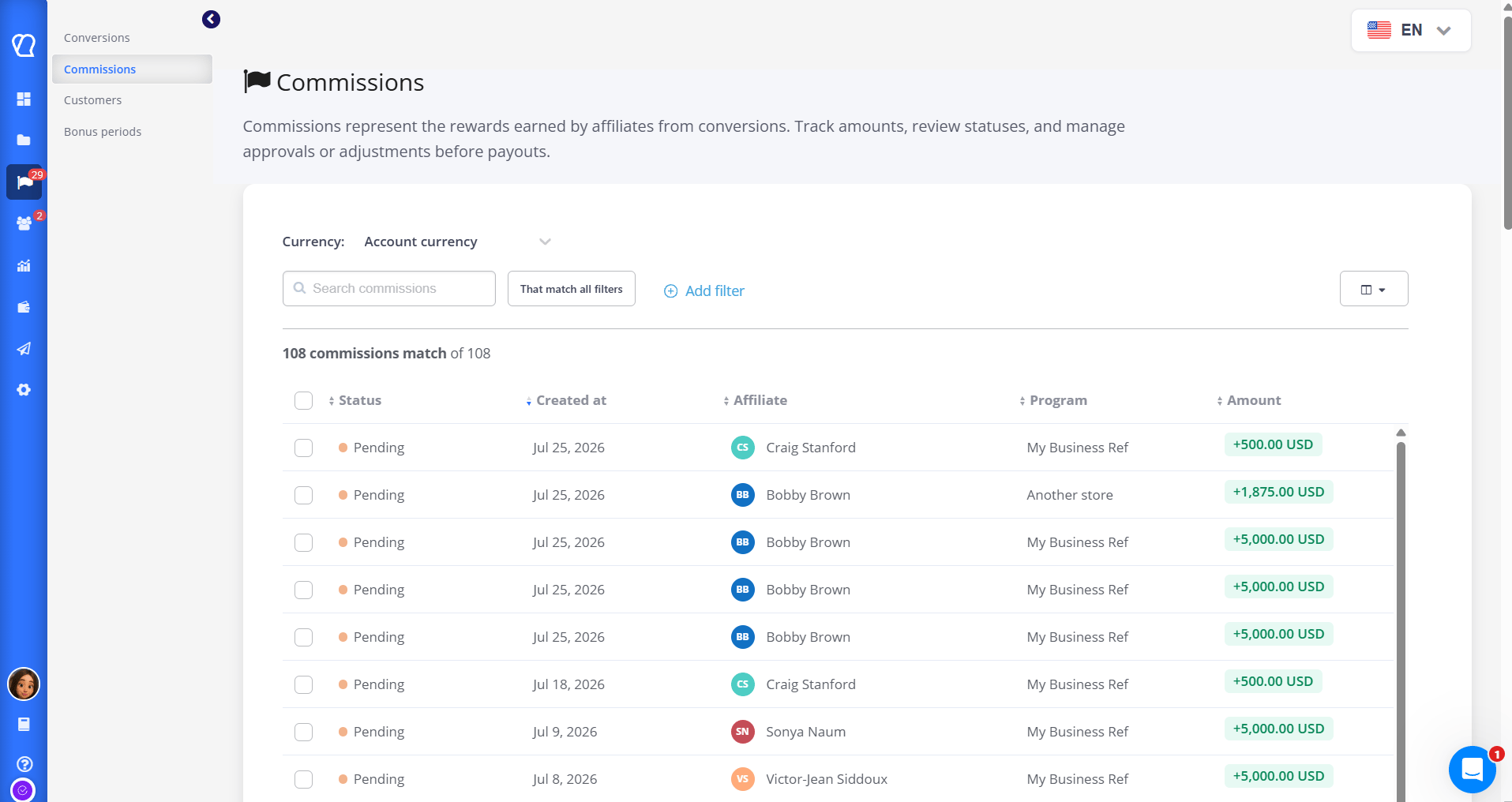
You can access the Commissions report from the main navigation:Conversions → Commissions:
Reviewing and Managing Commissions
Once you’re on the Commissions page, you can review commissions to understand:- Whether a commission is pending, approved, or disapproved
- Which affiliate and program the commission belongs to
- The commission amount and currency
Approving, rejecting, and commenting
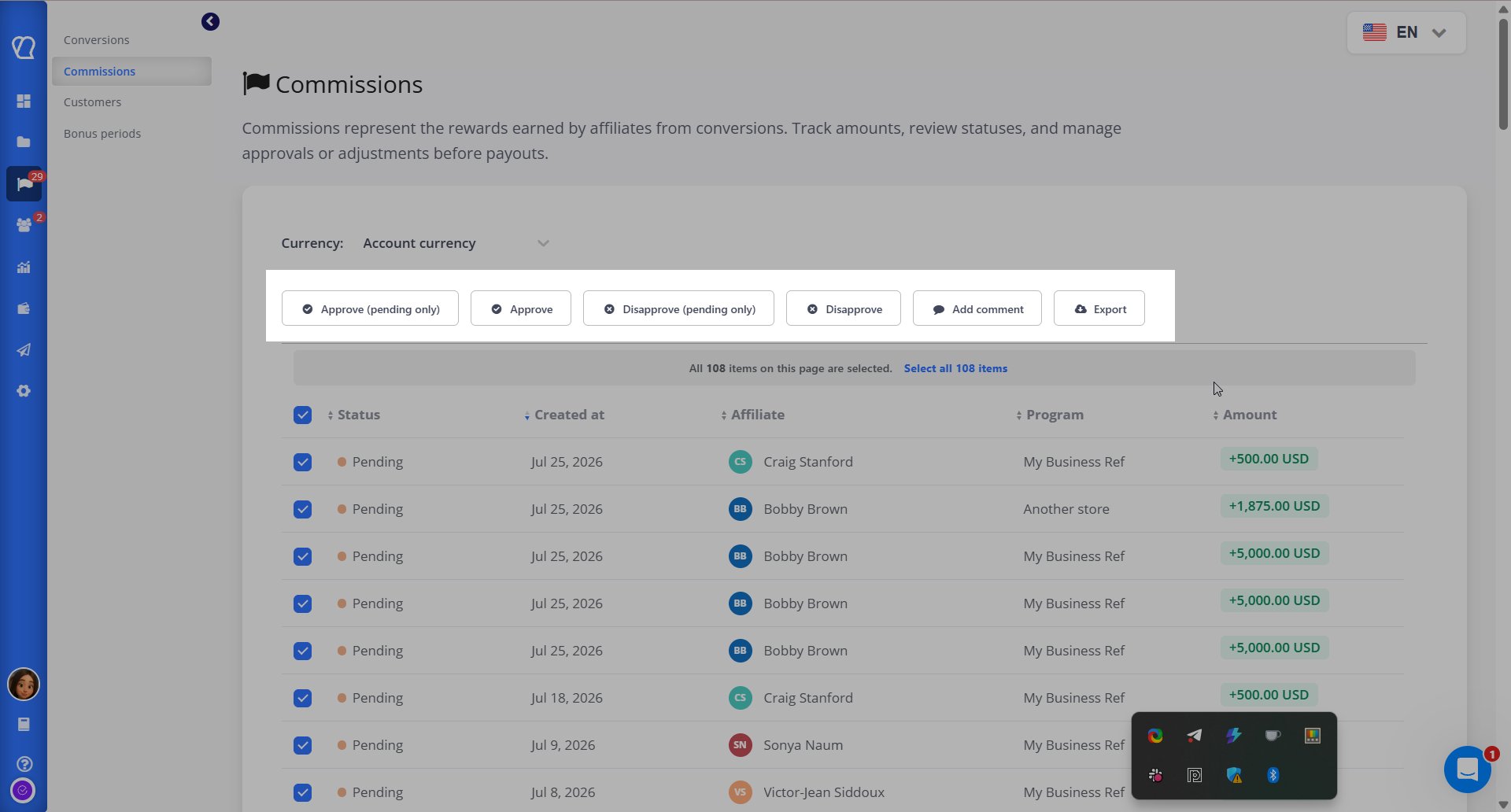
You can manage commissions individually or in bulk:- Approve commissions that are ready for payout
- Reject commissions that should not be rewarded (for example, refunds or invalid orders)
- Add comments to explain a decision to the affiliate, for example why a commission was rejected
Why This Changed
We’ve consolidated all commission decisions: review, approval, rejection, into a single section. Now, the approval and disapproval is available in both the conversions and commissions page.This change also lays the groundwork for our upcoming hands-free payout service. Once available, you’ll be able to see a commission’s payment status: pending or paid, alongside its approval status, right here. This will help in having one clear, end-to-end section for commissions, instead of splitting review and payout view across Conversions and Commissions.
Filtering, Exporting, and Understanding Conversion Context
To work more efficiently, you can filter commissions by criteria such as status, affiliate, program, date range, amount, or commission type. Filters help you focus on exactly the commissions you need to review.If no commissions match your filters, you’ll see a message indicating that there’s no data to display.
You can also export commissions as a CSV file, which is useful for:
- Accounting and finance workflows
- Payout reconciliation
- Internal reporting
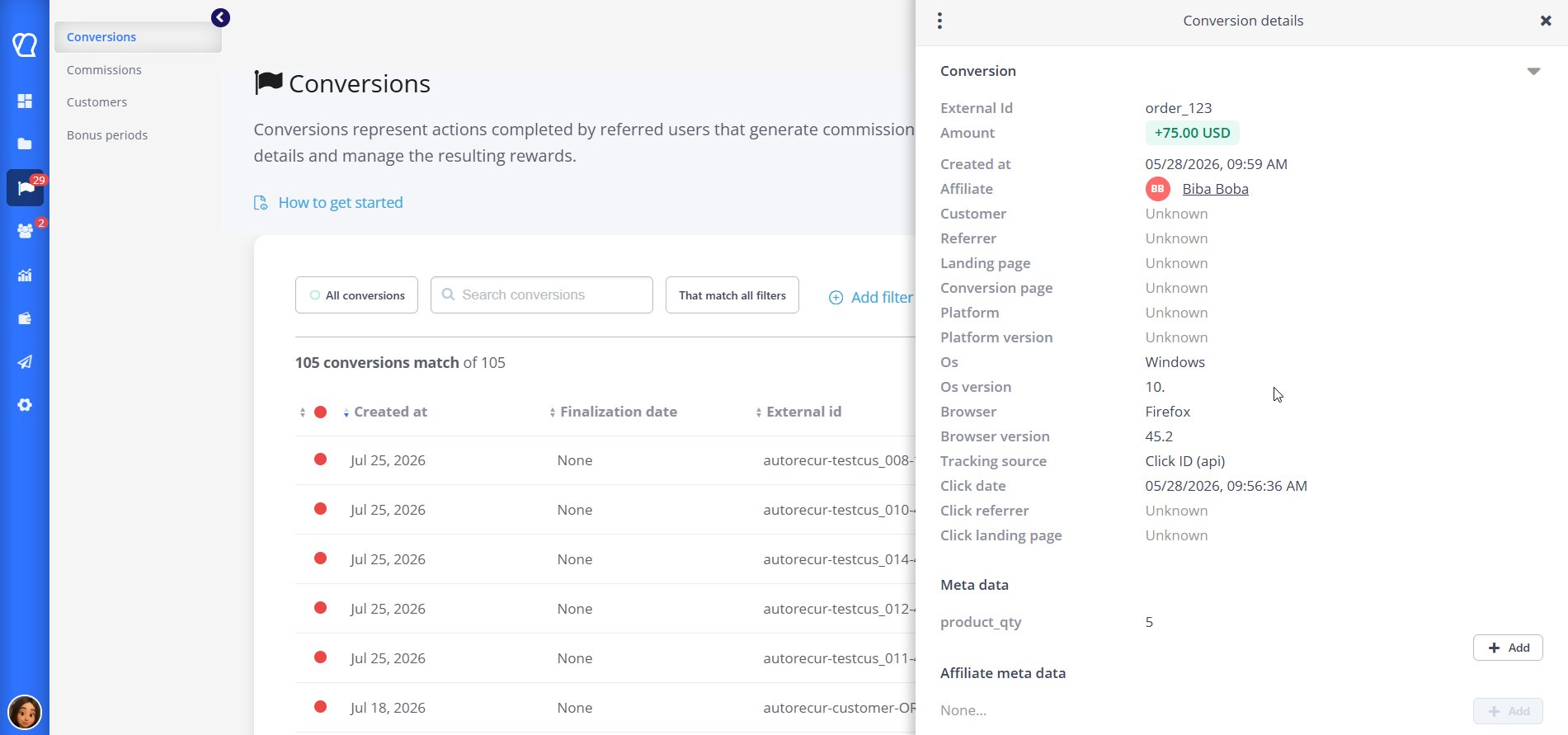
How commissions relate to conversions
Conversions represent actions completed by referred users, such as purchases or sign-ups.Commissions are the rewards generated from those conversions.
What Affiliates Can See
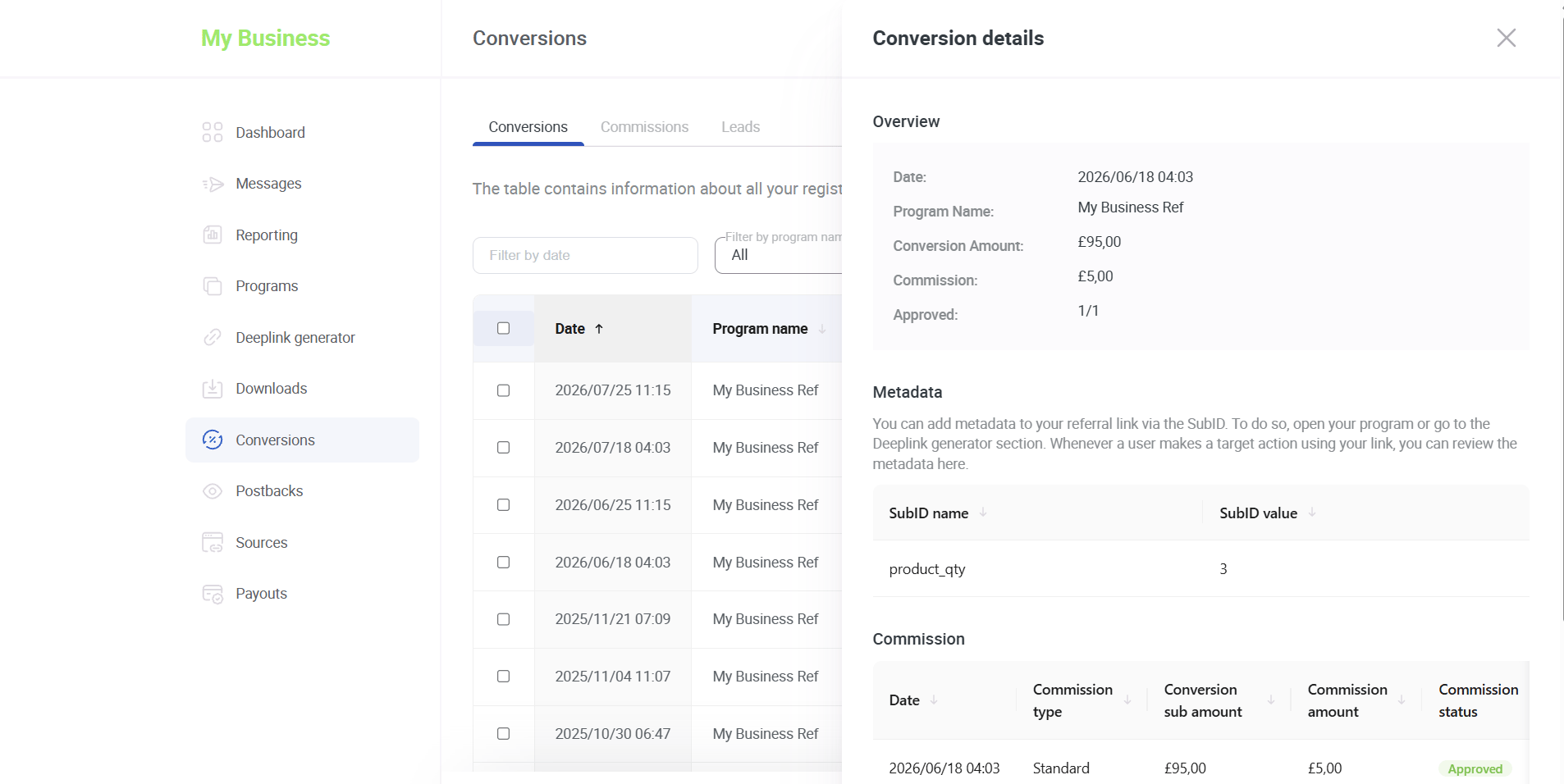
Affiliates can view their own commissions in their dashboard, including:- Commission amounts
- Approval status
- Payment status (if payouts are enabled)
- Comments you added to a commission (shown when they open the conversion)
Still Need Help?
If you have questions or run into issues, contact us at support@tapfiliate.com. Our team is happy to help.Next Steps
To get more value from commission management, consider:- Reviewing your payout settings and approval flows
- Checking your commission structures for recurring or bonus rewards
- Exploring related guides on payouts, reporting, and affiliate management