October 1, 2026
Create a conversion
Go to your Conversions page, click on the “New Conversion” button to create a new conversion.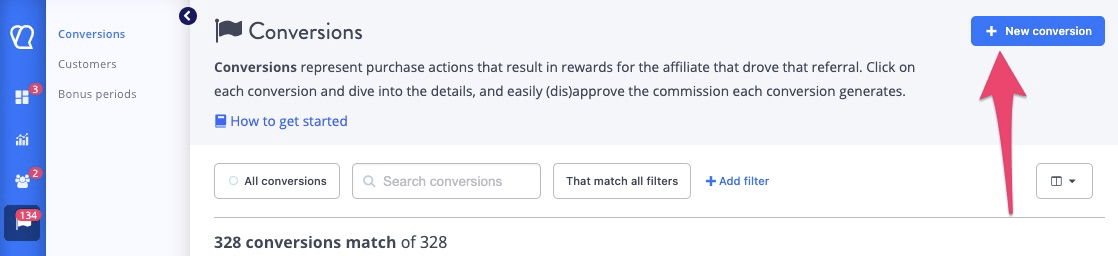
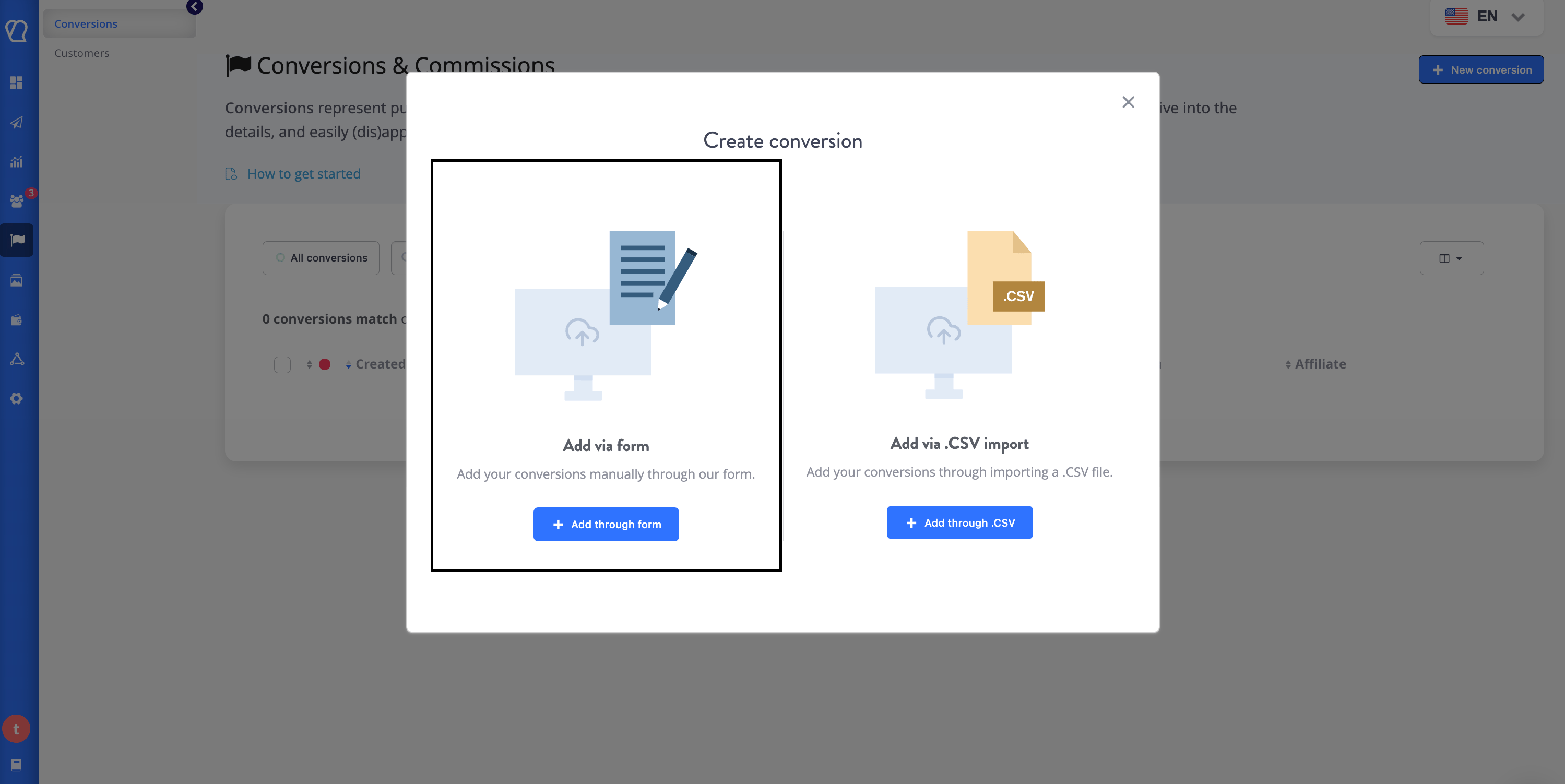
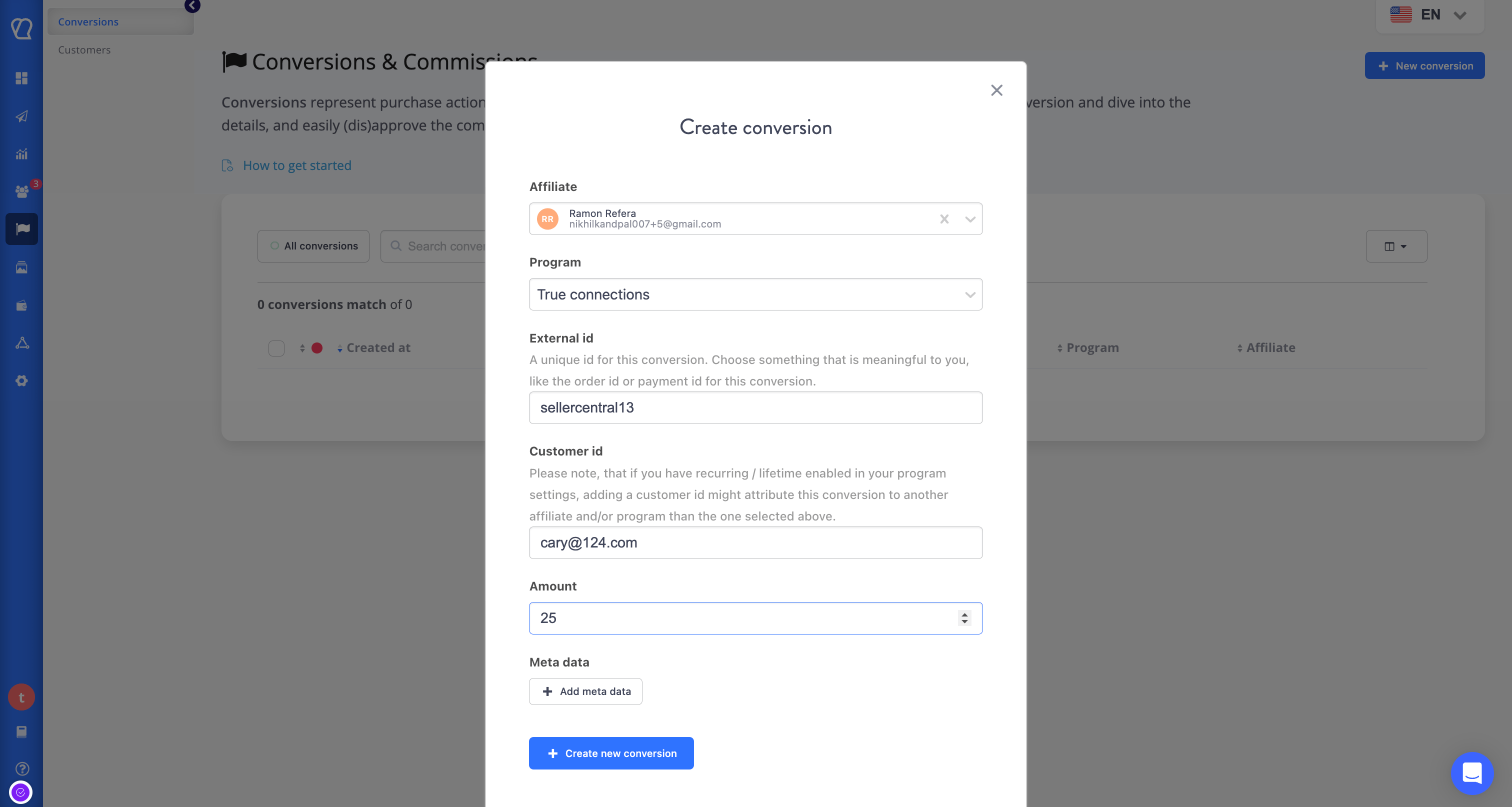
Importing conversions in Bulk
Tapfiliate allows you to import conversions in bulk using its built-in CSV import feature. Step 1: Start a New Conversion ImportLog in to your Tapfiliate dashboard.
- Go to Conversions from the left-hand menu.
- Click + New conversion.
-
Select Add via CSV import.
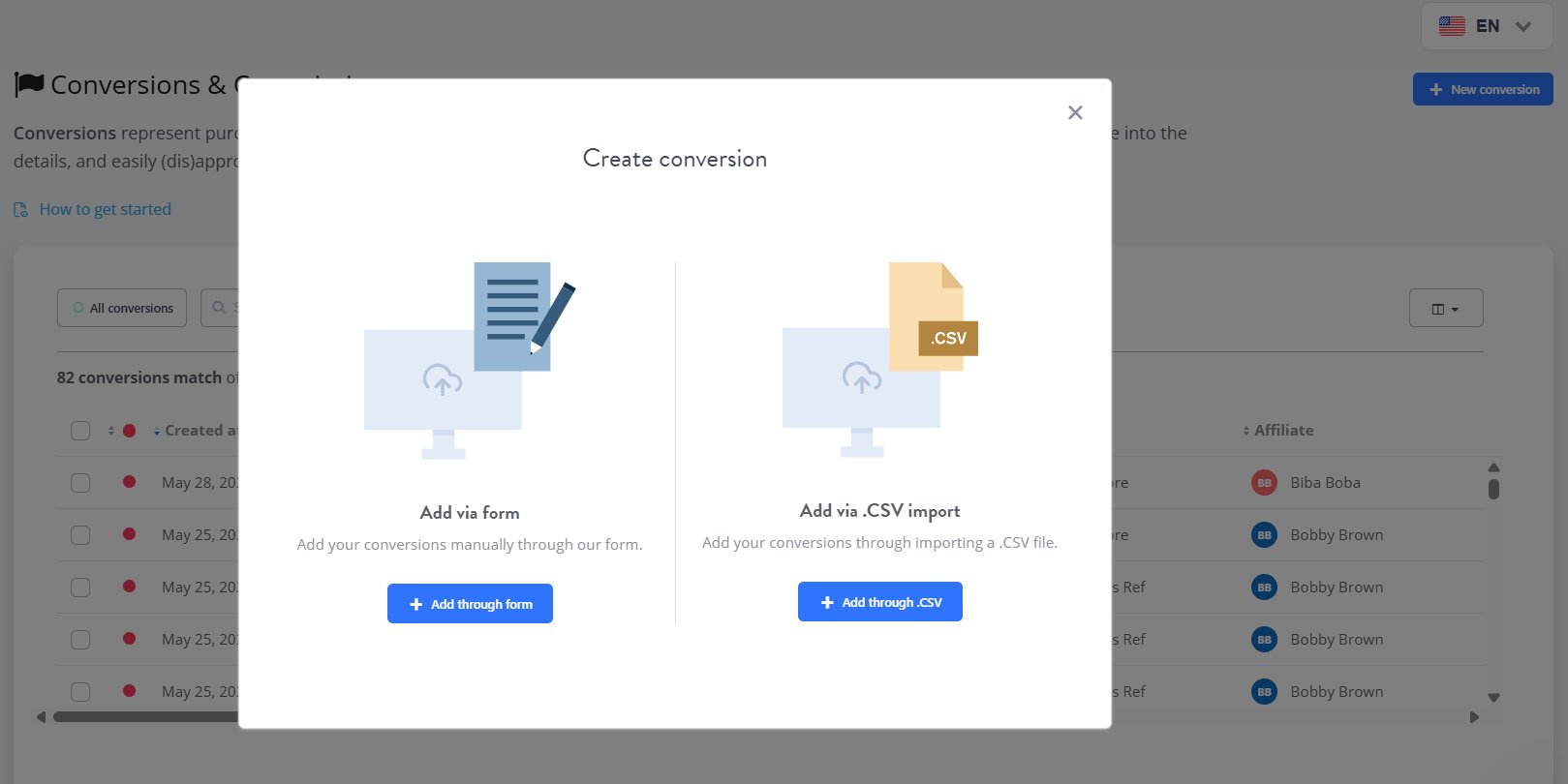
- Download or preview the sample CSV.
- Use the exact snake_case column names shown in the sample file.
- Replace the example data with your own conversions.
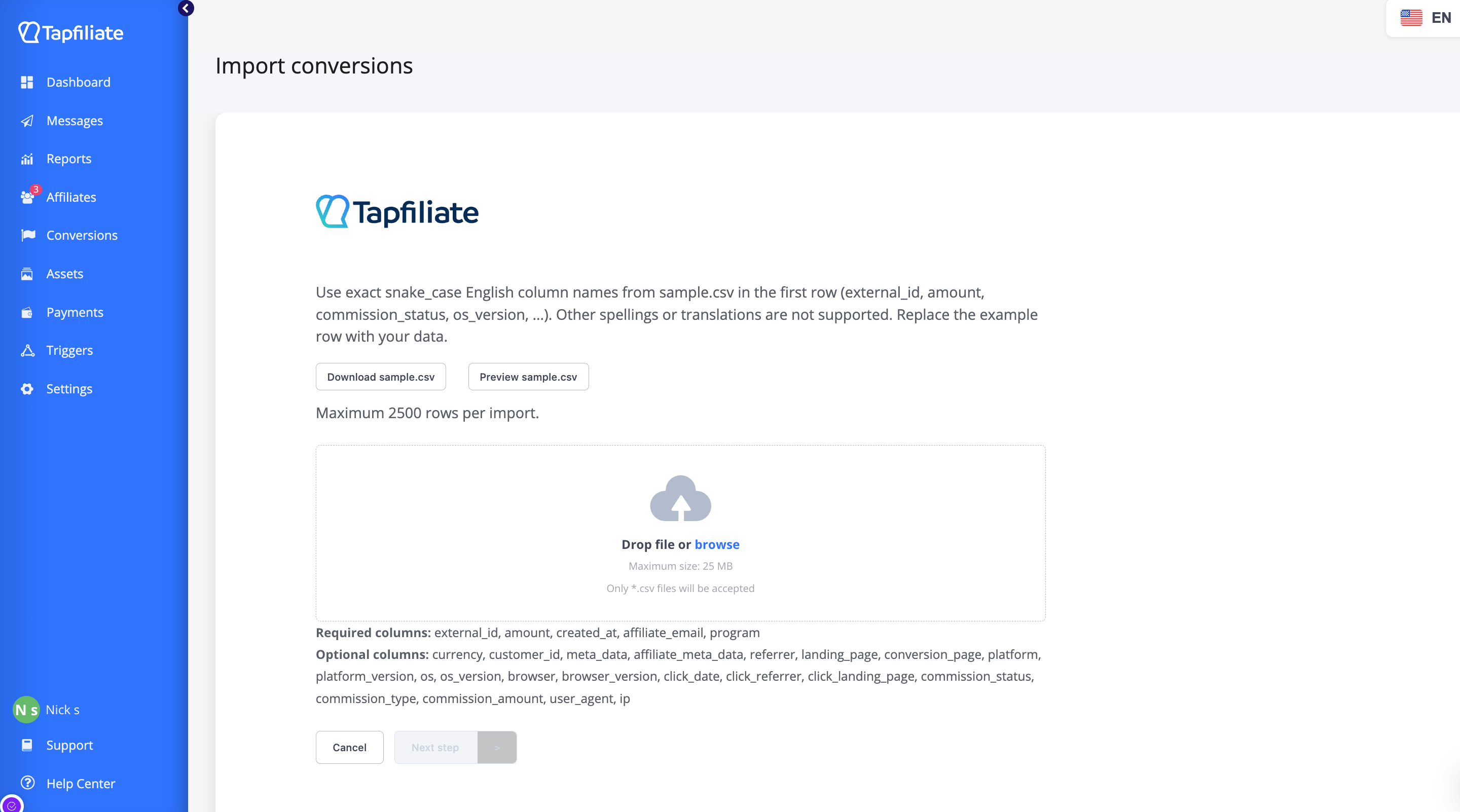
- external_id
- amount
- created_at
- affiliate_email
- program
You may include the following optional columns to provide additional tracking, attribution, and commission details:
currency, customer_id, meta_data, affiliate_meta_data, referrer, landing_page, conversion_page, platform, platform_version, os, os_version, browser, browser_version, click_date, click_referrer, click_landing_page, commission_status, commission_type, commission_amount, user_agent, ip Limits:
- Maximum 2,500 rows per import
- Maximum file size: 25 MB
- Only .csv files are supported
- Drag and drop your CSV file into the upload area (or click browse).
- Click Next step.
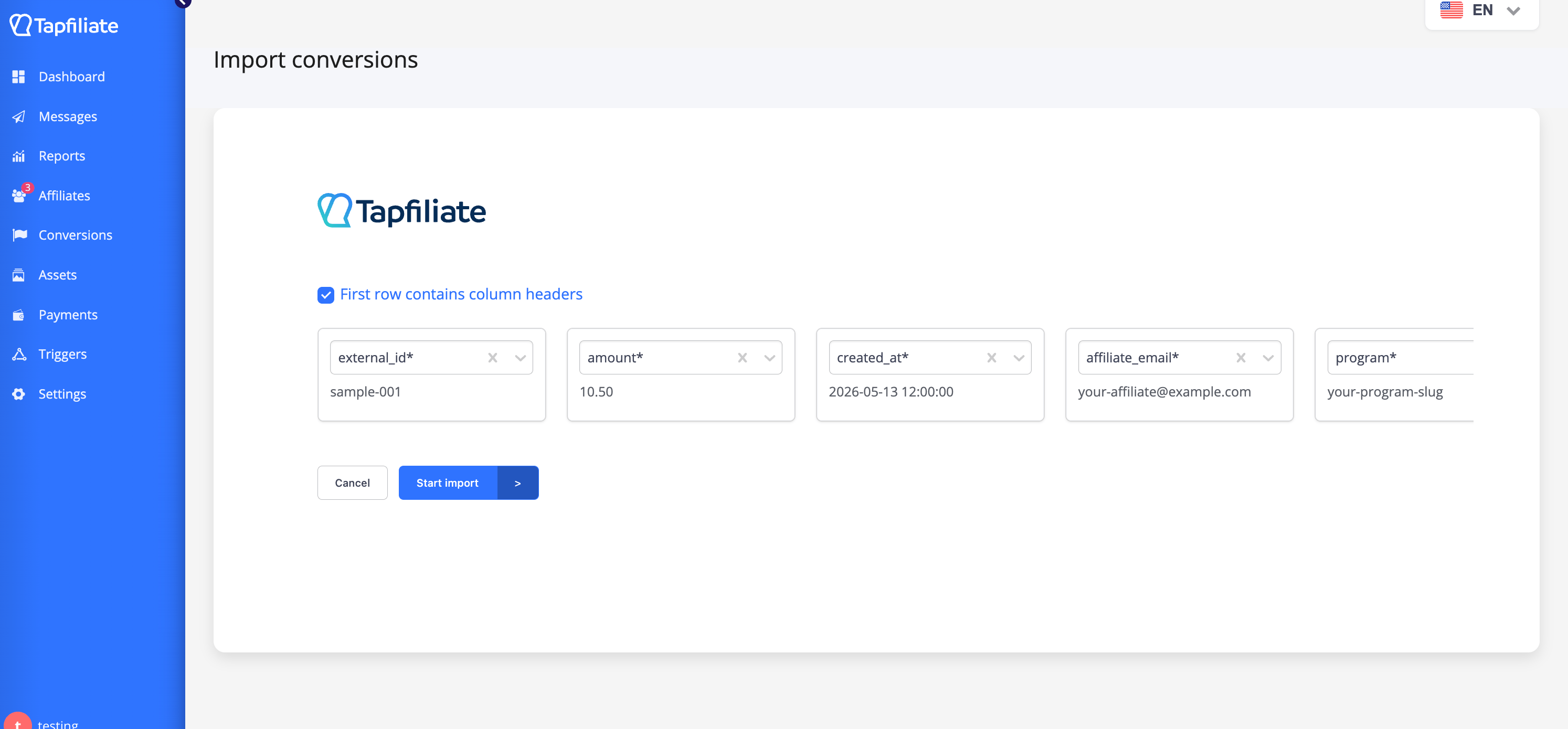
- Review the data and confirm the import by clicking “Start Import”.
Create a Customer
Go to your Customers page, click on the “New Customer” button to create a new Customer.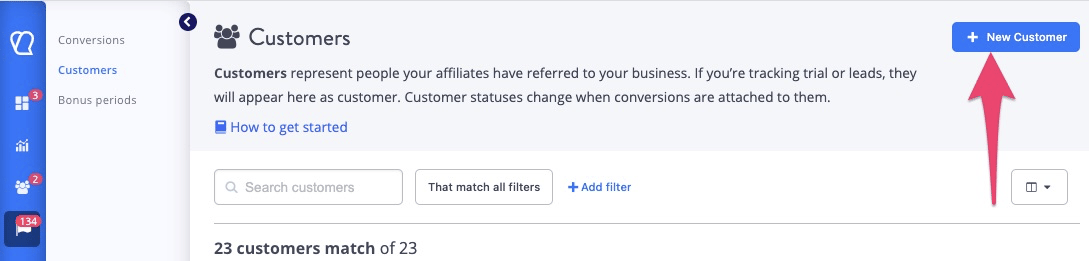
Reassigning a Customer to a Different Affiliate
Currently, Tapfiliate does not support direct reassignment of customers to a different affiliate. However, you can use the following workaround:- Go to the Customers page in your dashboard.
- Locate and open the customer entry you want to reassign.
- Delete the customer entry by selecting the appropriate option (e.g., from a menu or settings panel).
- Recreate the customer by clicking New Customer.
- During the creation process, select the correct affiliate to assign the customer to. This workaround ensures that the customer is reassigned to the correct affiliate. Additional Notes:
- Always double-check the affiliate selection during customer creation to avoid errors.
- If you encounter issues during this process, consult Tapfiliate’s support documentation or contact their support team for assistance.