October 15, 2026
In this article we will go over:
- An introduction to our new Reporting page
- Our New Reporting’s Auditing capabilities
- How you can drill down and learn more about your affiliate program
- How to review your program’s growth
- How you can export your Reporting data
Reports Page
In this guide, we’ll go over some practical tips and tricks about how you can use the Reports section to gain insights about your affiliate program’s performance.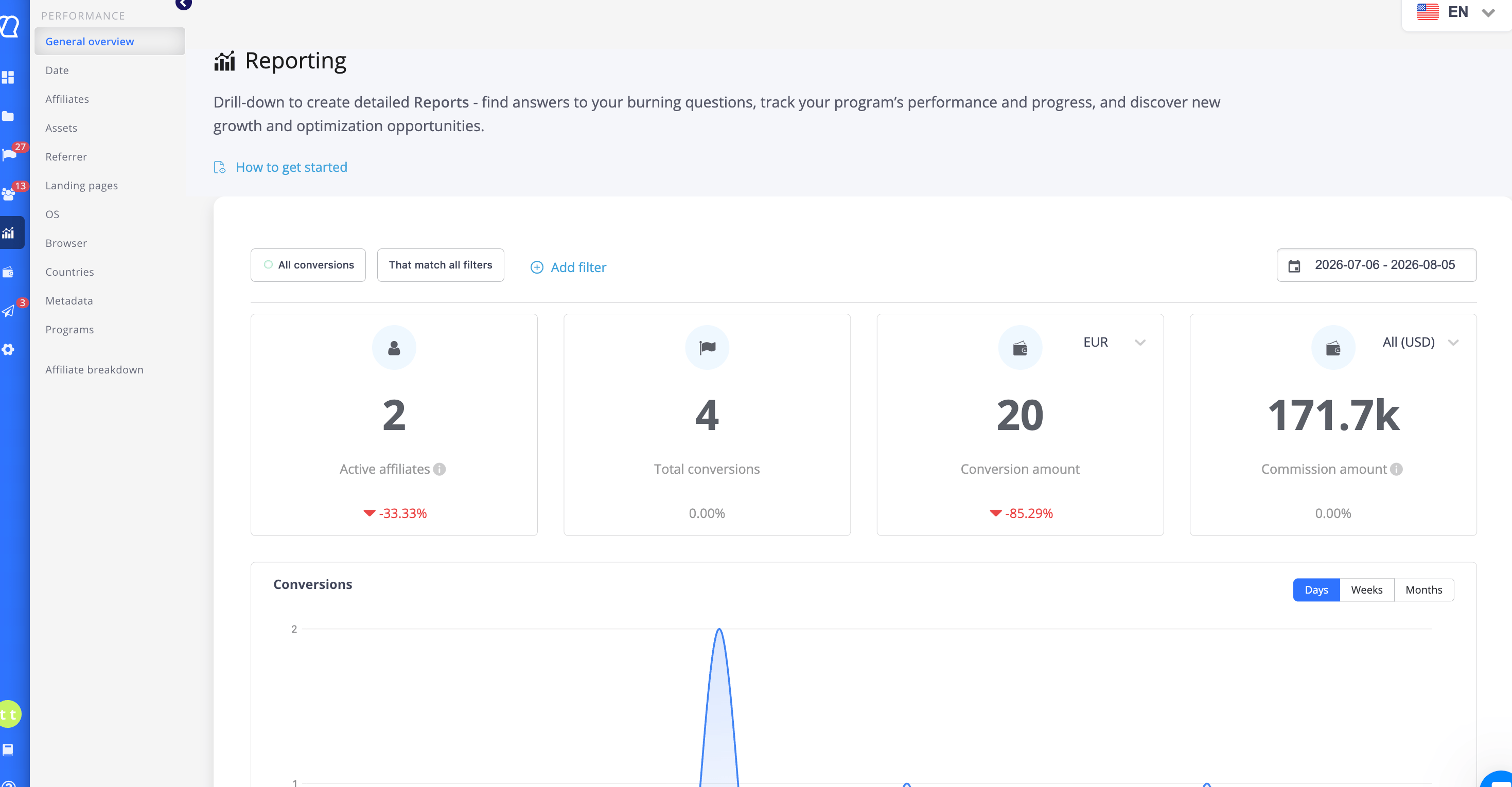
Audit seamlessly 📈
With the Reports page, you’re just a click away from more profound insights.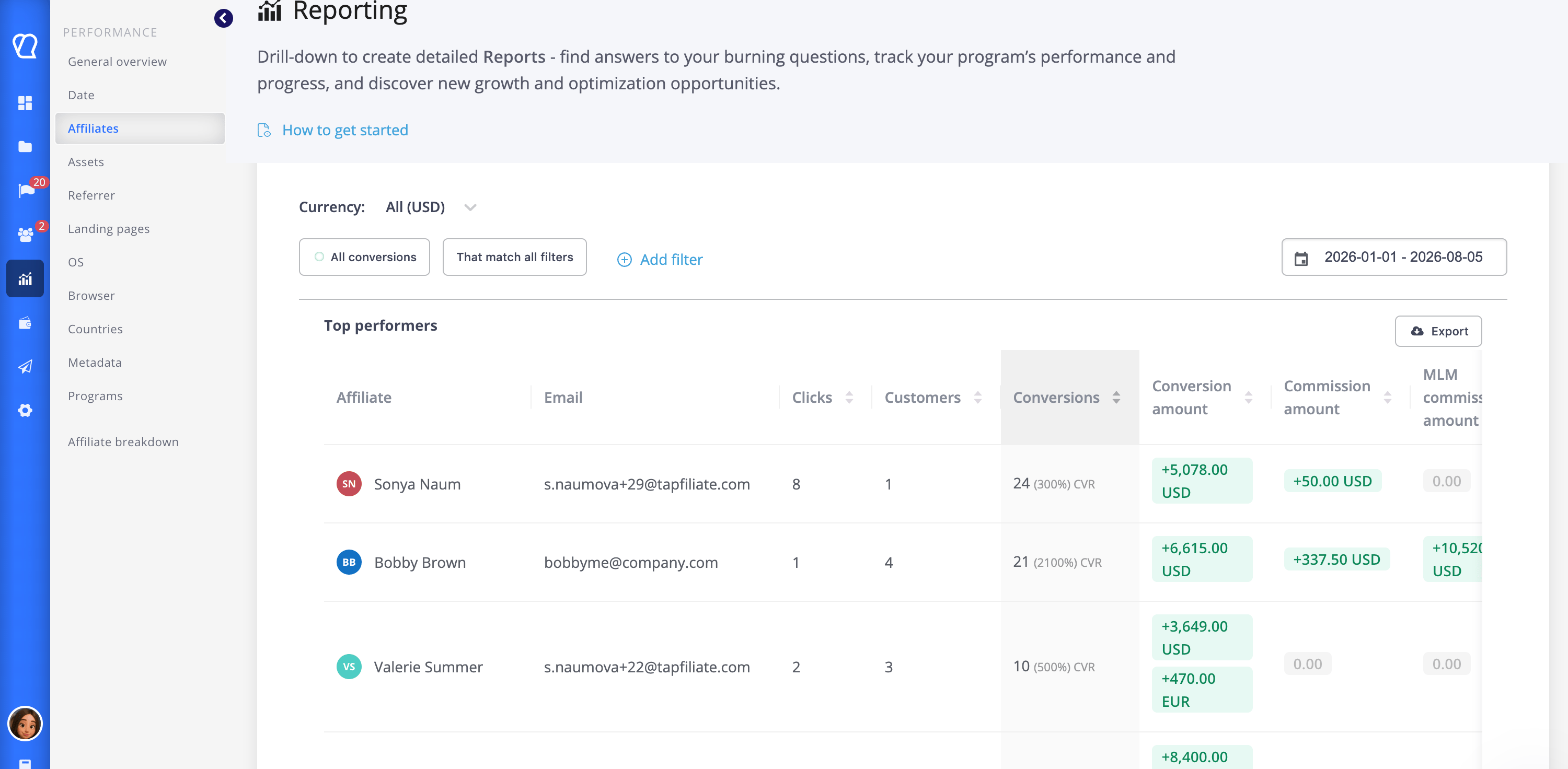
Try this:
- On the General Overview tab, click on a country in the map. This applies the filter for that specific country.
- On this same page, next to the map, you will find the commission status pie chart. Click on the green “approved” section. This applies a filter that displays data concerning approved commissions.
- Then, navigate towards your Affiliates report - here you will see that the two previous filters remain in place - you only see data relevant to your search and date range.
- If you want to drill down further, click on an affiliate in the table. This applies the filter for that affiliate.
Drill down & find out more 🔎
Drill down and uncover valuable insights. Use a variety of reports to answer key questions about your affiliate program:- Date - Generate reports that break down your affiliate-driven revenue per day, per week, or per month.
- Affiliates - Review your top performers and compare their performance with other affiliates.
- Referrer - See where your affiliate-driven audiences are coming into contact with your brand.
- Countries - Find out where your affiliate-driven customers reside.
- Landing pages- Do you know which landing page generates the most revenue? See where your affiliates are directing traffic and which pages drive higher conversion rates.
- Browser/OS - Identify potential pain-points and find out how your users convert in a variety of browsing environments & conditions.
- Marketing Assets- Discover what eye-catching assets drive the most clicks and conversions.
- Metadata - Are you already retrieving metadata with your conversions? If so, you can now sort through your metadata keys. This is especially useful if you’d like to know what products your affiliate-driven customers are interested in!
- Programs - see the performance based on a program/campaign in your Tapfiliate account.
Keep tabs on your affiliate program’s growth.
In the Affiliate breakdown report, you can track your affiliate demographics and the growth of your program’s membership. 😊 Discover:- How many sign-ups took place in a certain period
- What affiliate groups have the new sign-ups been added to
- How many affiliate prospects have been promoted
Review & Export
Review your Customers & Conversions
If you’d like to take a closer look at the Conversions or Customers that make up a report, click the “Conversions” & “Customers” links in the grey bar. This allows you to look at the Conversions or Customers associated with the Report you have generated.Exporting your Reporting data
Your data is yours to keep - whenever you’ve generated your report, you can export it by clicking on the Export button on the upper right of the table, just below the date range filter.