November 9, 2026
You can ask for specific details like social media links, audience size, or a preferred coupon code. Standard sign-up forms capture basic information, but Custom Fields allow you to gather specific, high-value data essential for managing a professional partnership program. This powerful feature helps you vet potential partners, understand their audience reach, and automatically categorize them for targeted communication and reward structures. The table below details how to configure these fields.
Pro-Tip for the Article:
💡 Note on Deletion: While you can delete Custom Fields at any time using the trash icon, Default Fields (like Website or Country) are permanent system requirements. If you do not wish to use a Default Field, simply turn on “Hide field” to remove it from their view.IMPORTANT: Plan Requirement
The Custom Onboarding Fields feature is available exclusively for users on the Scale and Enterprise plans. Advertisers on the Launch plan can manage default fields but must upgrade to access custom field creation.To begin adding personalized questions to your affiliate onboarding flow, navigate to Settings > Onboarding. Below the Default fields, you will find the Custom fields section.
- Click the Add field button. A new field appears in the list: type the specific question your affiliates will see into it (e.g., “How do you plan to promote us?”).
- With the field selected, the Editing field panel next to the list lets you configure the following details:
- Field type: Text or Multiple choice (see below).
- Required Toggle: Turn this ON if the affiliate must answer this question to finish onboarding. Leave it OFF if the field is optional.
- Hide field: Turn this ON to keep the field but not show it on the sign-up form.
- Description (Optional): Add a small hint or instruction that will appear below the field label to help affiliates provide the right information.
- Click Add field again to create another question (up to 15 custom fields), then click Save to apply your changes.
Available Field Types
Important Rules for Custom Fields
- Reordering: You can change the sequence of your custom fields using drag-and-drop. Simply click the handle next to a field name to move it up or down in the onboarding form.
- Editing: You can update a question’s name, description, and field type at any time in the Editing field panel.
- Deletion: You can remove a custom field by clicking the Delete (trash can icon) in the Editing field panel.
- Previewing: Check the Preview next to the field list (or click the Preview button below it) to verify how your custom fields will appear before you save.
FAQ
❓Is custom field input available through the REST API?
Yes. All data collected through your custom onboarding fields is fully accessible via our API. This allows you to sync affiliate answers with your own CRM, email marketing tools, or internal databases.To retrieve the configuration and choices of your custom fields, you can use the dedicated endpoint:
- Endpoint: https://api.tapfiliate.com/1.6/affiliates/custom-fields/
- Method: GET
- Data Structure: The API returns a list of your custom fields, including their unique IDs, titles, and any pre-defined choices (for multiple choice fields).
Example 1:
[{"id": "your-audience-size","title": "Your audience size","choices": ["0-1k", "1k-5k", "5k+"]
Example 2:
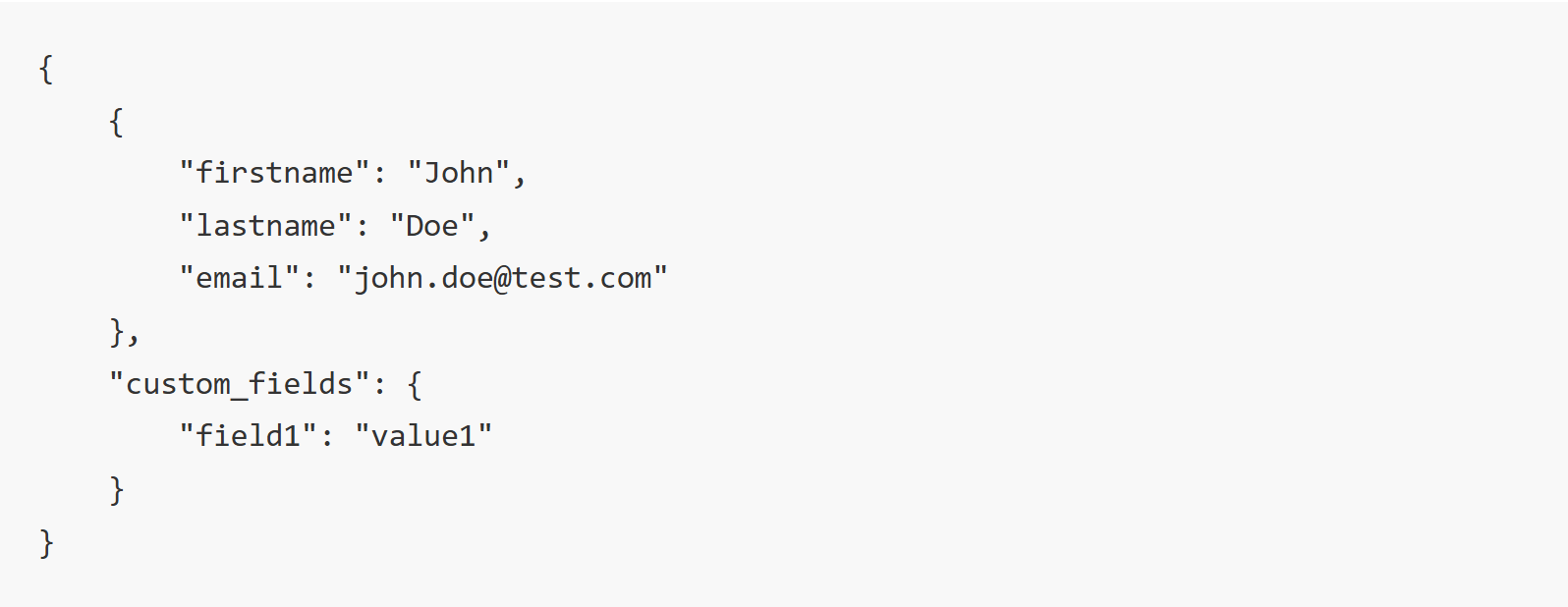
❓Can I remove all custom fields completely?
You can remove the custom fields you have created. Note that the last field won’t allow to be deleted; however, if you empty the question title, it will not appear in the affiliate onboarding.Still need help?
If you have any questions or if something in this guide is unclear, please don’t hesitate to contact us at support@tapfiliate.com - we’re happy to assist!
You have successfully defined and customized the core elements of your affiliate sign-up process.
- How to Set Up Automated Tiered Commissions Using Webhooks and Triggers (Advanced Implementation Guide) Explore technical options for creating various commission tiers and learn how to automatically move affiliates between groups based on their real-time performance.
- How to Communicate with Affiliates Learn how to use Tapfiliate’s communication tools to maximize engagement. This guide covers everything from direct, real-time messaging to setting up automated, event-driven emails.
- How to Apply Performance Bonuses to Affiliates Go beyond standard rates by rewarding your top-performing partners with one-time or recurring performance bonuses to keep them motivated.