October 22, 2026
In this article, we will cover:
- Why product feeds are useful for affiliates
- What you need before creating a product feed
- Product feed requirements and format
- How to upload your product feed in Tapfiliate
- Best practices for maintaining your feed
Product Feed Overview
Tapfiliate supports XML-based product feeds that allow affiliates to easily access and promote your products.Product feeds are especially useful for content creators, bloggers, deal sites, and comparison platforms that rely on structured product data to build pages, widgets, or price listings.
Prerequisites for Using Product Feeds
Before getting started, make sure you have:- A Tapfiliate advertiser account
- A publicly accessible XML product feed URL
- Product data such as IDs, titles, prices, links, and images
- Ability to update the feed regularly when product data changes
Product Feed Requirements
Your product feed must meet the following requirements to work with Tapfiliate:- The feed must be in XML format
- The root element must be
<items> - Each product must be wrapped in an
<item>element - The feed must be served with the header:
Content-Type: text/xml
Required Product Fields
Each<item> must include:
- id
- title
- link
Supported Optional Fields
You can also include additional fields such as:- description
- image_link
- availability
- price
- sale_price
- currency
- brand
- product_type
- gender
- color
- size
- other_1, other_2, other_3
<?xml version="1.0" encoding="UTF-8"?><items><item><id>123</id><title>V-Neck Shirt</title><description>It is awesome</description><link>https://myshop.com/v-neck-shirt/</link><image_link>https://myshop.com/images/v-neck-shirt.jpg</image_link><availability>in stock</availability><price>22.50</price><sale_price>17.50</sale_price><currency>USD</currency><brand>Awesomesauce</brand><product_type>T-Shirt</product_type><gender>Male</gender><color>Blue</color><size>XXL</size></item></items>
How to Upload Your Product Feed in Tapfiliate
Once your XML feed is ready, you can upload it to Tapfiliate as a Marketing Asset.Step 1: Go to Marketing Assets
In your Tapfiliate dashboard:- Navigate to Programs
- Select your program
- Click Marketing assets
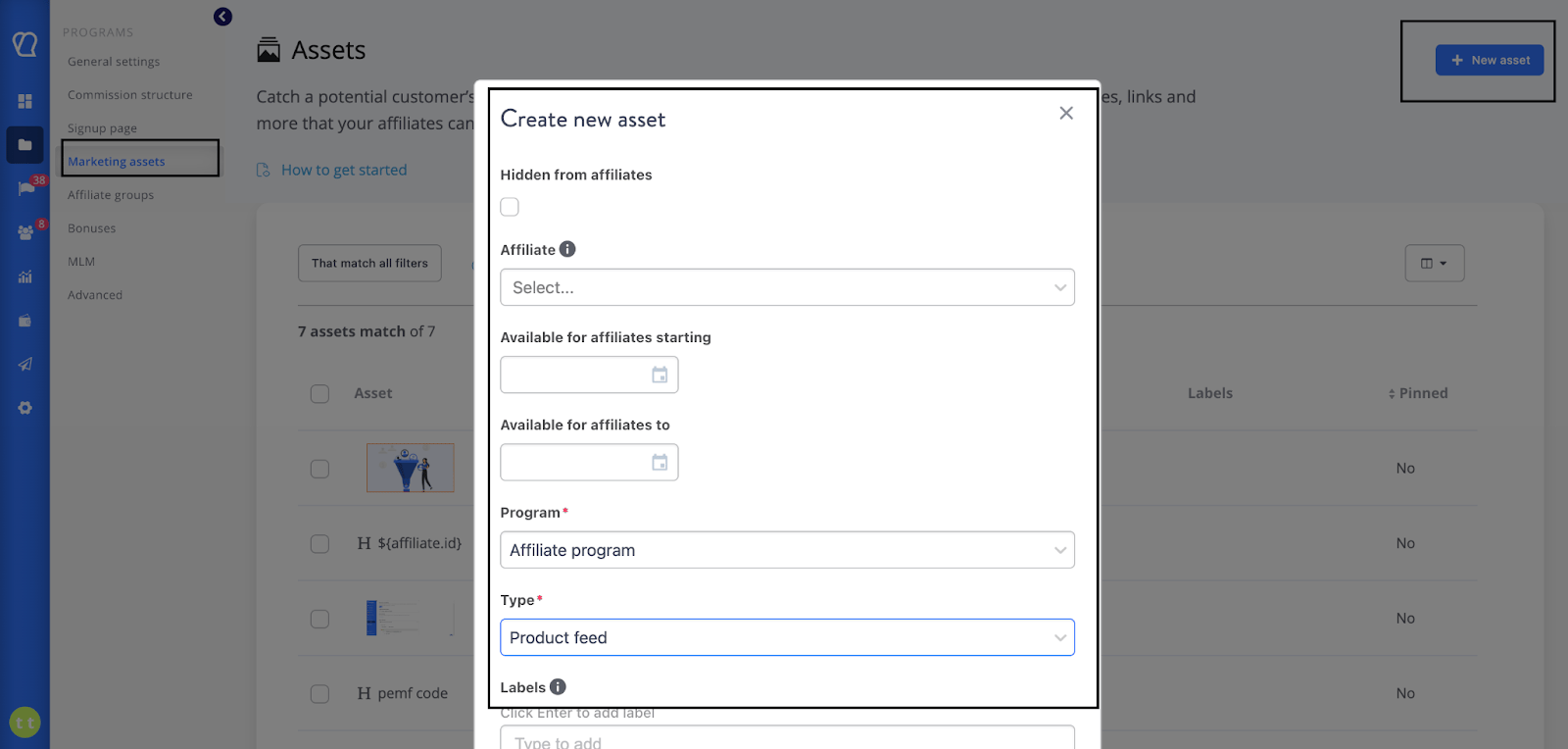
- Click New asset
- Select your Program
- Set Type to Product feed
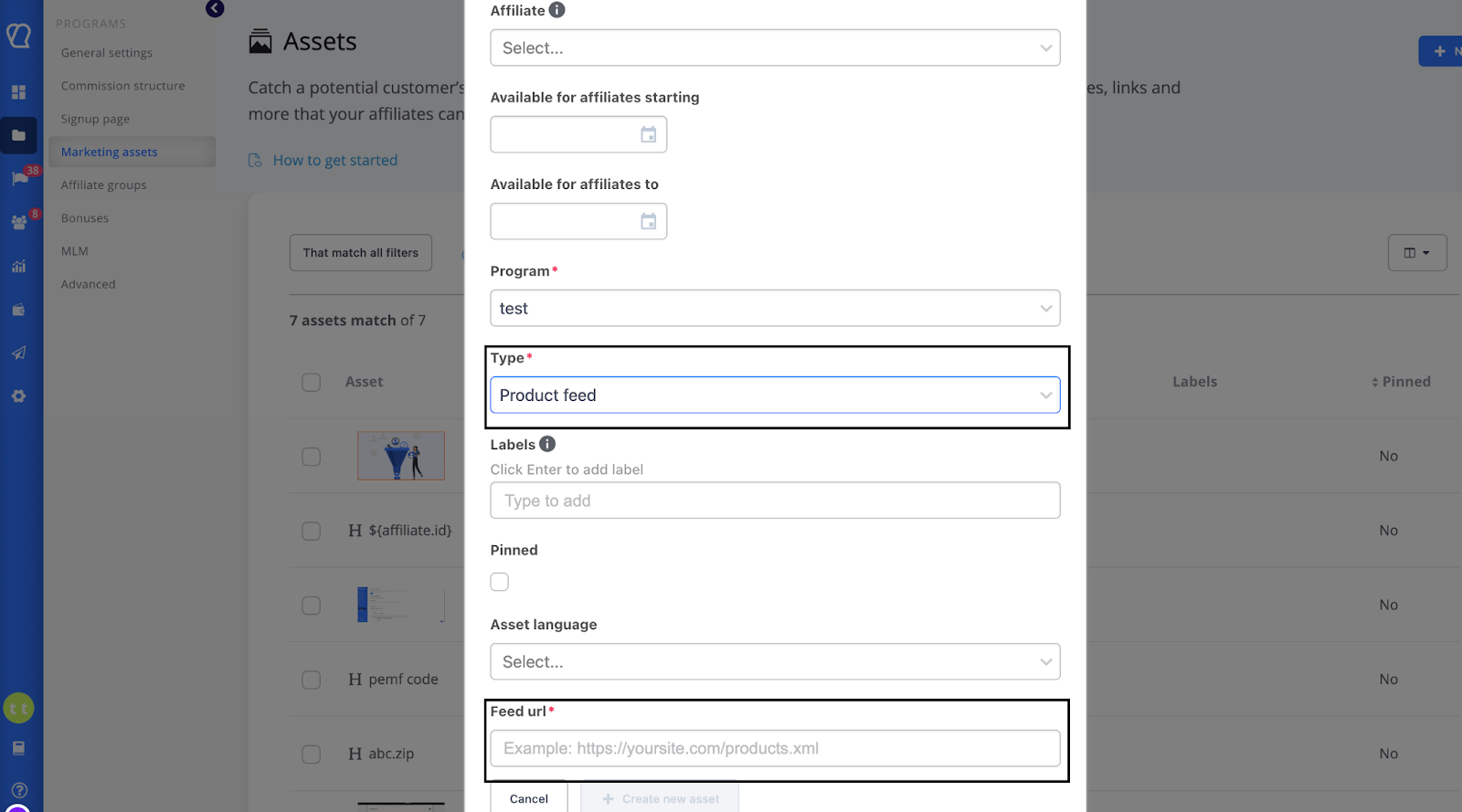
- Paste your XML feed URL into the Feed URL field
(Example: https://yoursite.com/products.xml) - (Optional) Add labels, language, or availability dates
- Save the asset
Best Practices for Product Feeds
- Keep your feed updated
Update the XML regularly so affiliates always see correct prices and availability. - Use clear product links
Make sure links point directly to product pages and load correctly. - Include images whenever possible
Image URLs significantly increase affiliate engagement. - Validate your XML
Always test your feed for valid XML formatting before uploading.
If you need help preparing your XML feed or confirming it meets Tapfiliate’s requirements, contact support@tapfiliate.com. We’re happy to help you get your product feed set up correctly.