November 10, 2026
- Setting the Currency and Managing Multiple Currencies
- Configuring Cookie Time in Days
- Choosing Affiliate portal Languages
- Automation capabilities
- Notification settings
- Archiving a program
- FAQs
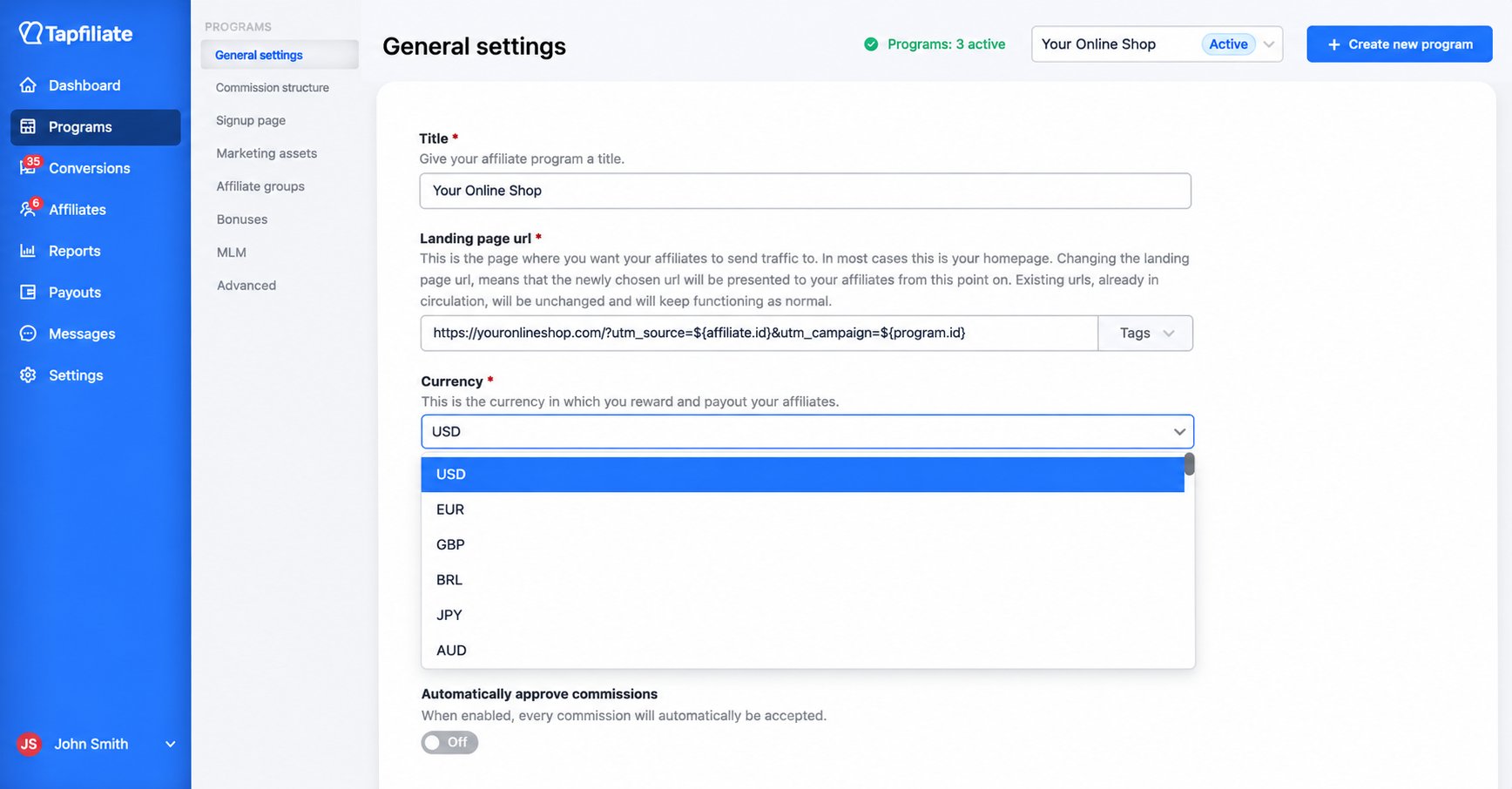
Here’s a complete list of currencies currently supported by Tapfiliate. The following dropdown lets you choose the currency used to reward and pay your affiliates:
All commissions, conversions, and reports within the program will be displayed in the selected currency. To select the currency:
Go to Programs > General settings - hit the Save button after choosing the currency:
This is possible when integrating with Tapfiliate using the JavaScript integration or the REST API by passing the appropriate ISO currency code. If you’re adding a manual conversion through the Tapfiliate interface, you can also select the desired currency directly from the Currency drop-down.
When a different currency is specified, the conversion will use that currency instead of the program’s default currency. This is especially useful if your store processes transactions in multiple currencies.
For reporting, Tapfiliate automatically converts values to your configured Account Currency (USD or EUR), allowing you to view performance across multiple currencies in a single reporting currency. This does not affect the original conversion currency or the program’s default currency used for commission calculations.
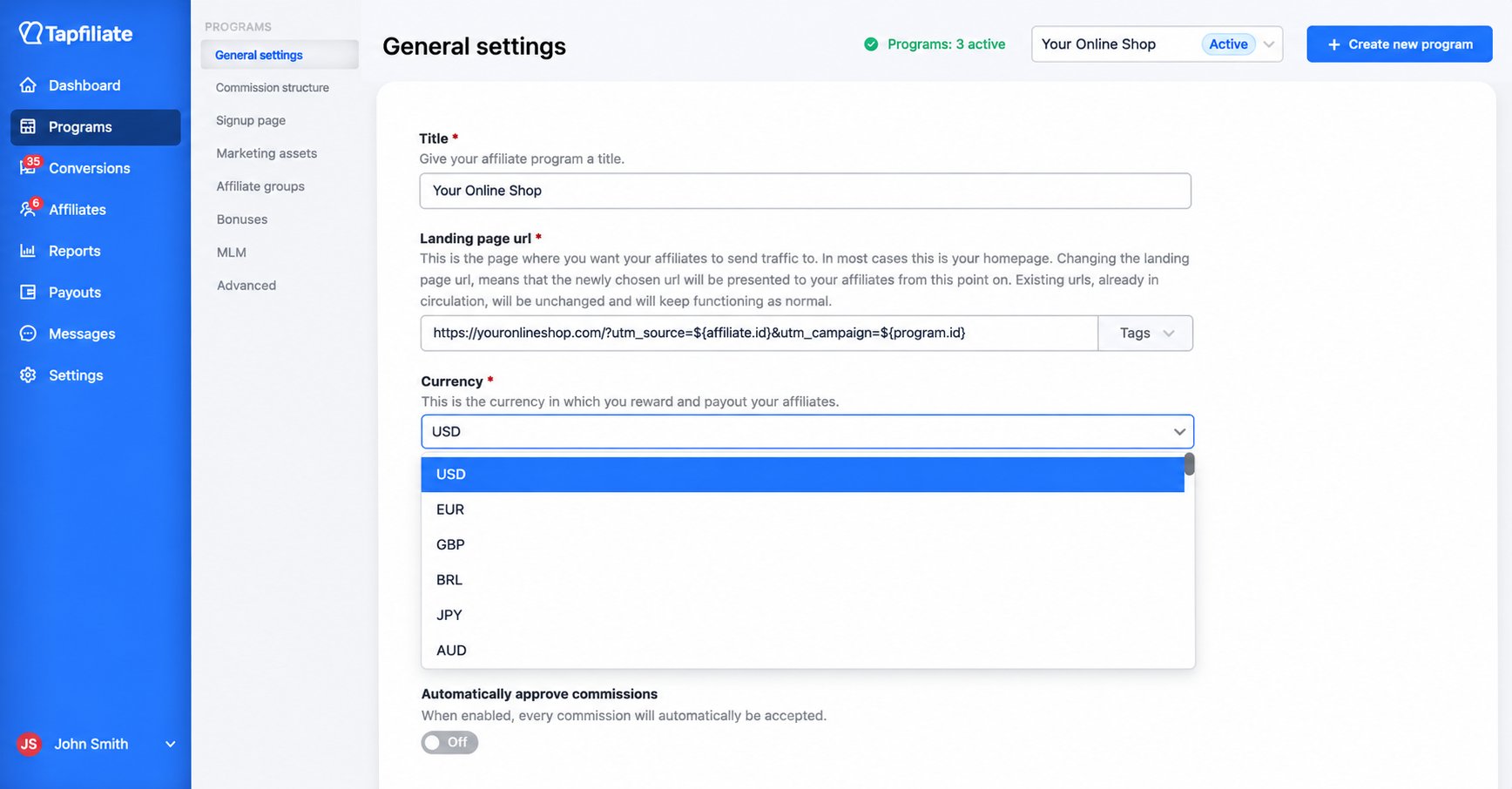
By default, Tapfiliate sets cookie time to 45 days, though industry standards can vary from 30 to 90 days. The maximum cookie time you can configure is 365 days.
Advertisers choose cookie durations based on purchase behavior and campaign goals:
- Short cookies (7–30 days) work well for flash sales or products bought quickly, ensuring affiliates are credited only for recent referrals.
- Medium cookies (30–90 days) suit products with longer decision cycles, like electronics or subscription boxes, allowing affiliates to nurture leads.
- Long cookies (180–365 days) are ideal for high-value or infrequent purchases, as well as loyalty programs, giving affiliates credit for conversions that happen months later.
If a user clicks multiple affiliate links before converting, the last affiliate link clicked will be credited for the conversion.
Example:
Tom discovers an online shop through an affiliate link on Veronica’s blog. He browses the shop but leaves without making a purchase. A few days later, Tom clicks a link shared by Sandra on Facebook, visits the shop again, and completes a purchase.
Even though Tom initially found the shop through Veronica, the commission goes to Sandra, as she was the last affiliate to direct him to the shop.
To configure your program’s cookie time:
- Go to Programs > General settings.
- Locate the ‘Cookie time in days’ field.
- Enter your preferred number of days.
- Hit button Save.
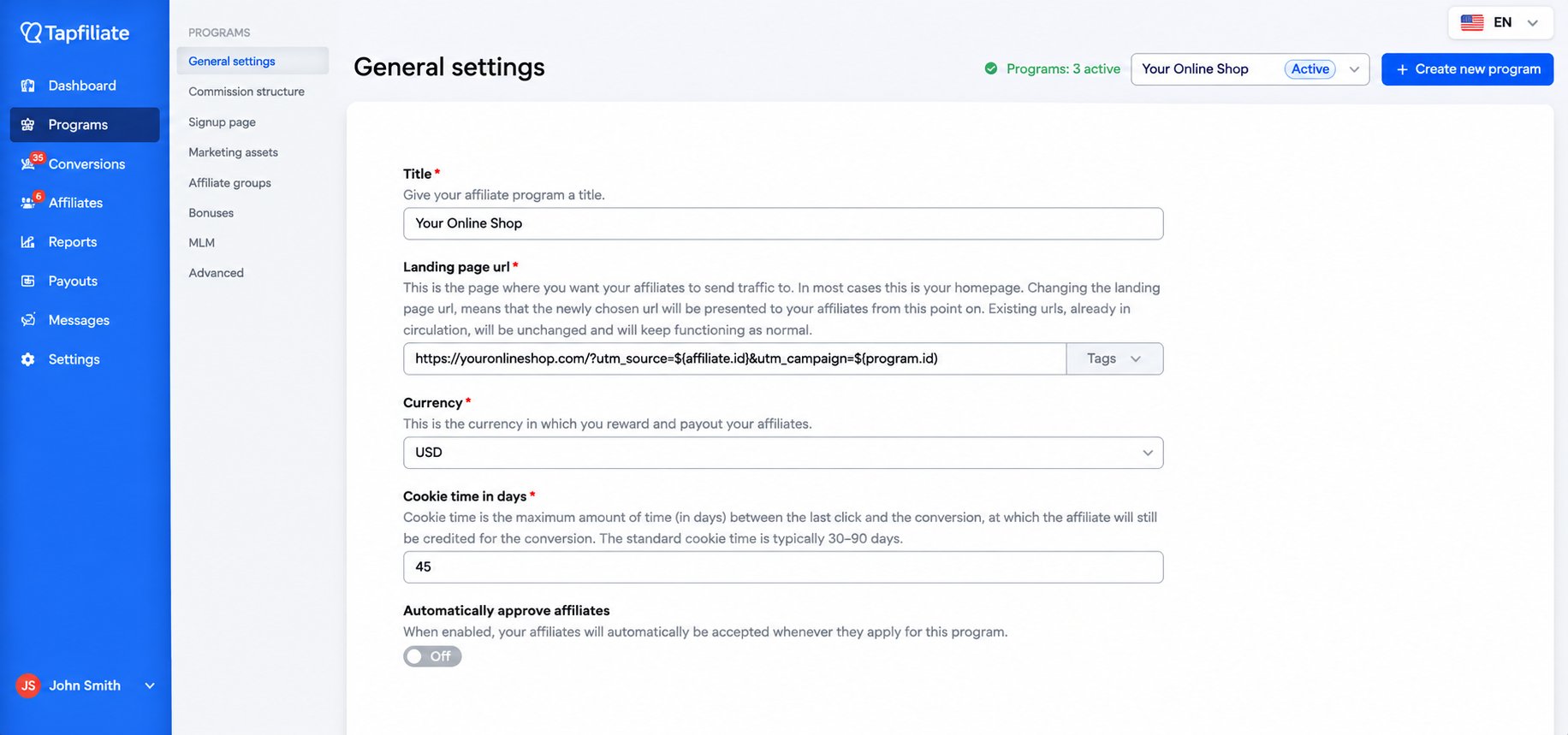
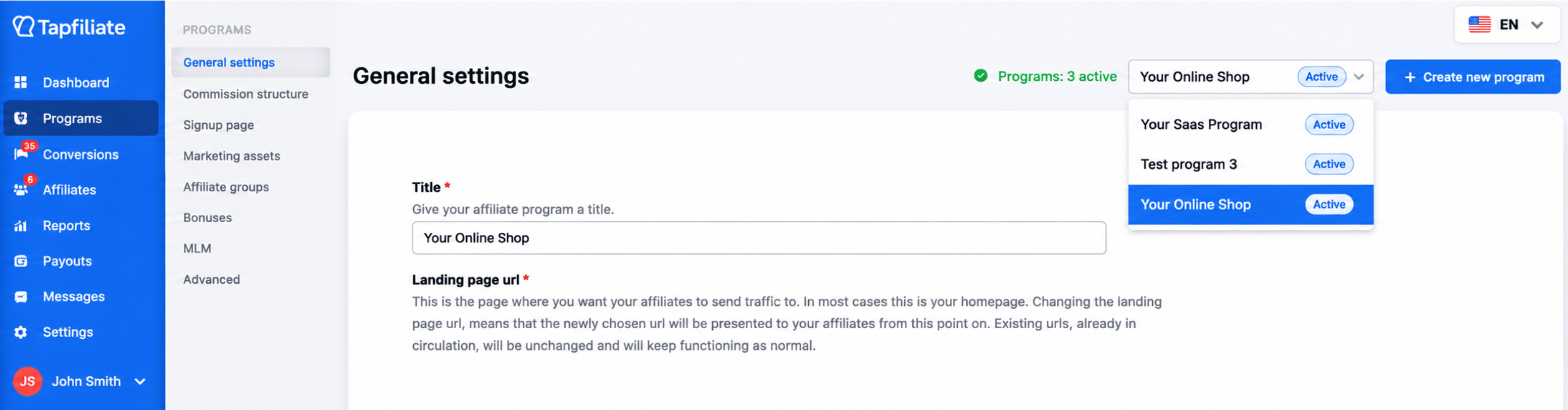
Note that you can set different cookie durations for each program if you have multiple programs. Here’s how to switch between programs:
Tapfiliate will not track conversions once your account’s set cookie period expires. In other words, the cookie lifetime inside the Tapfiliate system is what matters for tracking purposes. The Affiliate Portal is available in the following languages:
- English
- French
- German
Spanish - Portuguese (Brazilian)
- Japanese
To choose the language your affiliates will see, you can set the default language for both the sign-up form and the affiliate dashboard. This also determines the language used in the affiliate portal. You can configure this in: Program → Signup page → Language
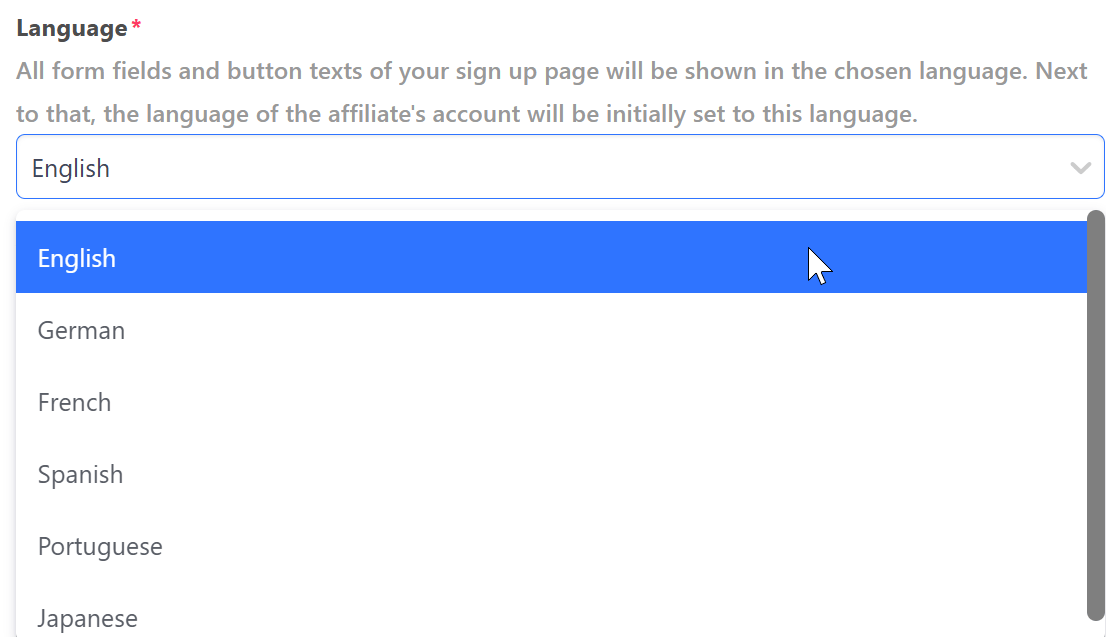
While you, as the advertiser, can define the default language for affiliates starting at the sign-up page, affiliates can change their preferred language later in their account under the Profile settings tab.
Automation Capabilities
You can automate the approval of affiliates and commissions from your program settings. When Automatically approve affiliates is enabled, new affiliates are automatically approved when they apply to the program. When Automatically approve commissions is enabled, commissions are automatically approved without requiring manual review.
Notifications settings
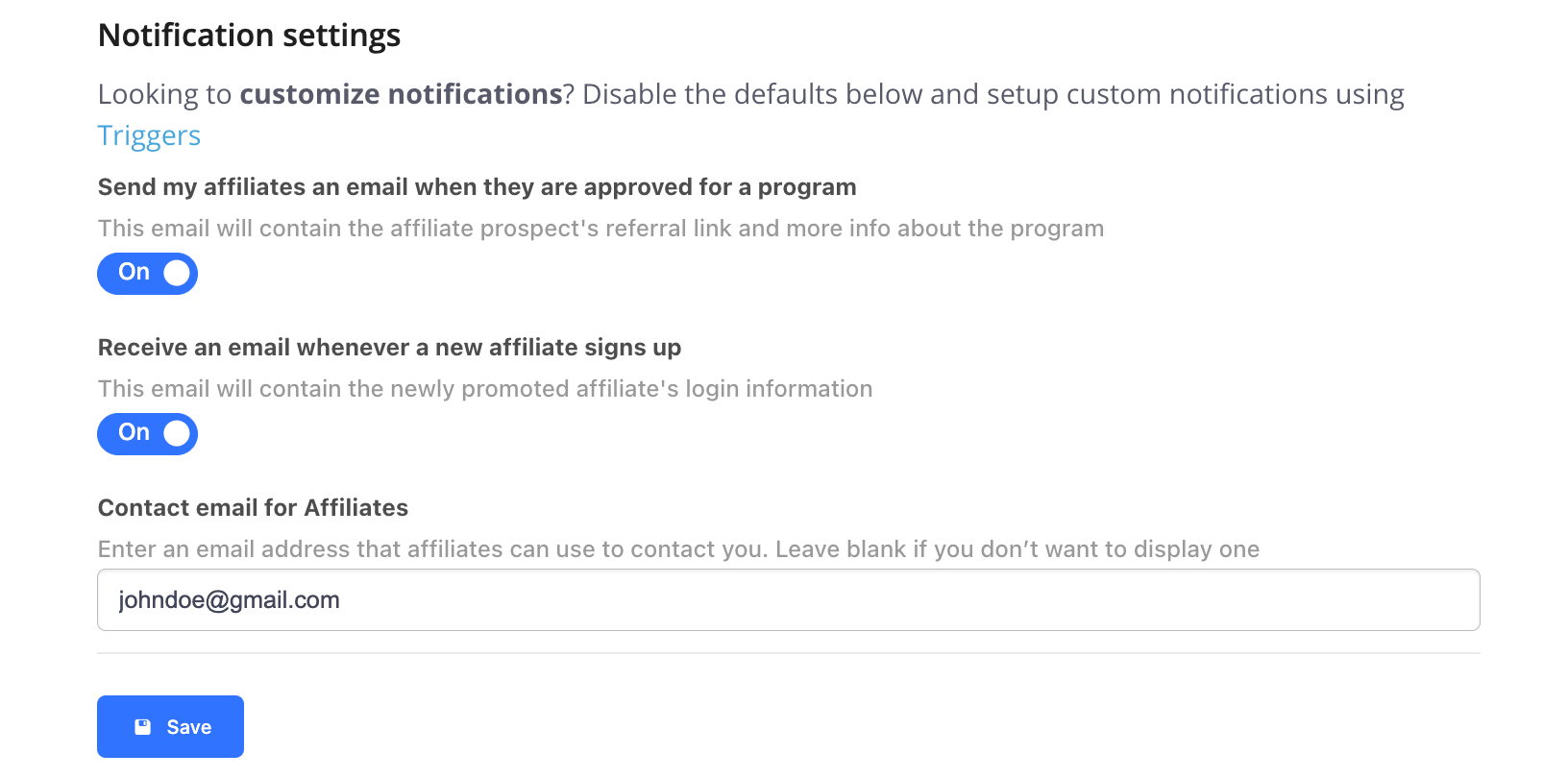
Under Notification settings, you can manage the default email notifications for your program. You can choose to notify affiliates when they are approved and receive an email when a new affiliate signs up. If you prefer more control over your notifications, you can disable the default notifications and create custom ones using Triggers.You can also add a Contact email for Affiliates, which gives affiliates an email address they can use to contact you and it gets sent directly via the standard welcome email template. Leave this field blank if you don’t want to display a contact email.
Archiving a program
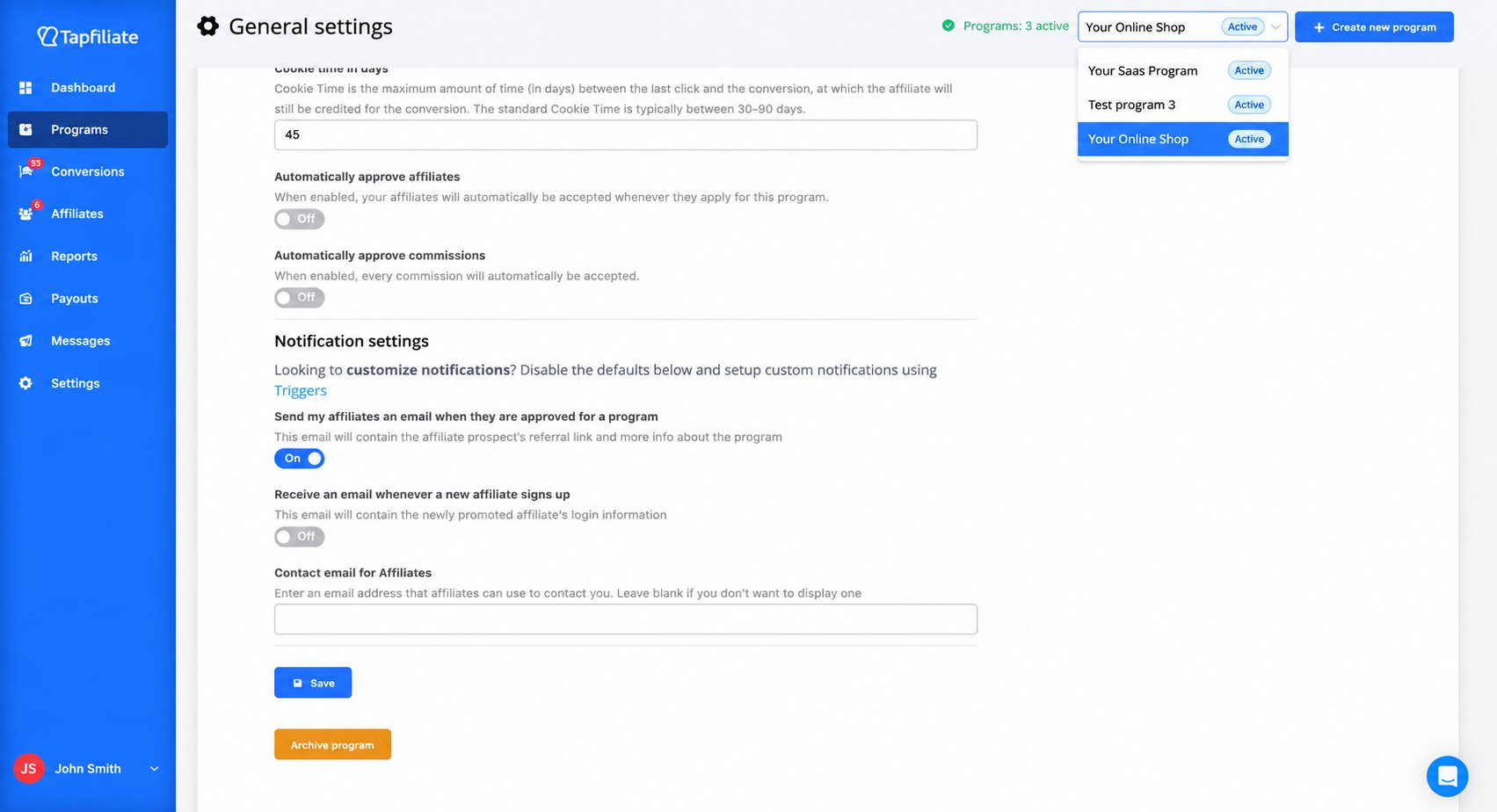
If you no longer run one of your programs, you can archive it instead of leaving it in your active list.How to archive a program:
- Go to Programs > General settings.
- Select the program you want to archive in the program switcher in the top right corner of the page.
- Scroll to the bottom of the page and click Archive program.
- Confirm in the pop-up.
- It stays in your account with all of its historical data and opens in a read-only view marked Read only view. This program is archived.
- It stops tracking completely. New clicks, conversions, customers and commissions are no longer recorded for it, and its referral links no longer work.
- Its settings, assets and commission types can no longer be edited.
- Your affiliates still see the program in their portal, marked as Inactive. They cannot open it or reach its links and assets.
- It does not count towards the number of programs included in your plan.
Programs with automatic recurring commissions: if a commission type of the program has Automatic recurring commissions switched on, archiving cancels every customer who receives these commissions. Clicking Activate later does not bring these customers back: no more automatic recurring commissions are generated for them, and conversions you send with their customer ID are rejected. Lifetime commissions, and recurring commissions without the automatic option, keep working once the program is active again.
Wherever you pick a program in Tapfiliate you can see whether it is Active or Archived, and the counter at the top of the page shows how many of your programs are currently active. ❓If I track conversions in several currencies, what will be the currency the affiliates will be paid in?
Tapfiliate can track conversions in multiple currencies. Each conversion retains its original currency, which is used for commission calculations and affiliate balances.
For reporting, Tapfiliate automatically converts values to your configured Account Currency, allowing you to view performance across multiple currencies in a single reporting currency.
This reporting conversion does not change the original conversion currency, the Program Currency, or affiliate commission calculations. If you need to perform currency exchange when processing payouts outside of Tapfiliate, you can continue to do so as part of your payout workflow.
You can find more details about managing payouts here.