November 6, 2026
- Why Your Team Needs Access
- Permission Matrix for Team Functions
- Access Levels and Permissions
- Understanding Team Member Limits
- How to Add a New Team Member
- How to Enable or Disable a Team Member
- How can I change the main Account Holder
- FAQ
- Next Steps
- Sales Teams: Can analyze how affiliates impact revenue and track performance during special campaigns.
-
Creative Teams: Can access the platform to upload new shareable assets and content for affiliates.
❗Note on Asset Creation: The action of uploading a new creative asset to the platform is generally available to all logged-in team members, regardless of their specific permissions. The Manage programs permission restricts only the advanced management functions, such as deleting assets and approving new affiliates. Approving commissions needs the Approve commissions permission. - Product Teams: Can find out which products are the most popular among your affiliate audiences.
- Finance Teams: Can carry out affiliate payouts and settle outstanding balances.
- Customer Support: Can help affiliates navigate the Tapfiliate platform and answer their direct questions. To provide immediate, data-driven assistance when an affiliate encounters an issue, and to maintain the resources that enable self-service.
💡 Important Security Note: To avoid security risks and unnecessary data sharing, never share your personal login credentials or passwords with other employees. Instead, use the “Team Members” feature to create separate user accounts with the minimum access level required for their tasks.
This table serves as a reference guide to help you determine which specific team function (e.g., troubleshooting a conversion failure or updating promotional banners) requires which permissions within the Tapfiliate system. Use this matrix to understand the necessary access level for different roles within your organization.
Permission Matrix for Team Functions
- Development Teams: Can help configure tracking scripts or set up API automation.
Principle of Dynamic Interface
Tapfiliate operates on a Principle of Least Privilege:
- If a user does not have permission for a specific category (like Billing or General Settings), that entire section is hidden from their main menu. This simplifies their interface, minimizes confusion, and significantly enhances security.
Key Takeaway
If you need to grant access to employees (e.g., a marketing manager, finance specialist, or support lead), you need a plan with more seats. The Launch plan has one seat, which the Account Holder uses, so giving anyone else access means upgrading to Scale or higher.
NOTE: You can review plan options and upgrade directly here Upgrading your plan, by following the steps in the article. Alternatively, to find the perfect plan for your specific team and business needs, we recommend reading our guide: Find the Ideal Tapfiliate Plan to Maximize Your Affiliate Revenue. 🚨 Adding a new user to your Tapfiliate account is a simple process that must be performed ONLY by the Account Holder❗
This step is crucial for distributing responsibilities and maintaining account security.
- Click Settings in the left-hand menu.
- Under Account, select Team members.
- Click the ”+ Create new team member” button.
- Fill in the required information: First name, Last name, and Email.
- Choose the access permissions (see the table above).
- Click “Add team member” to finalize the process.
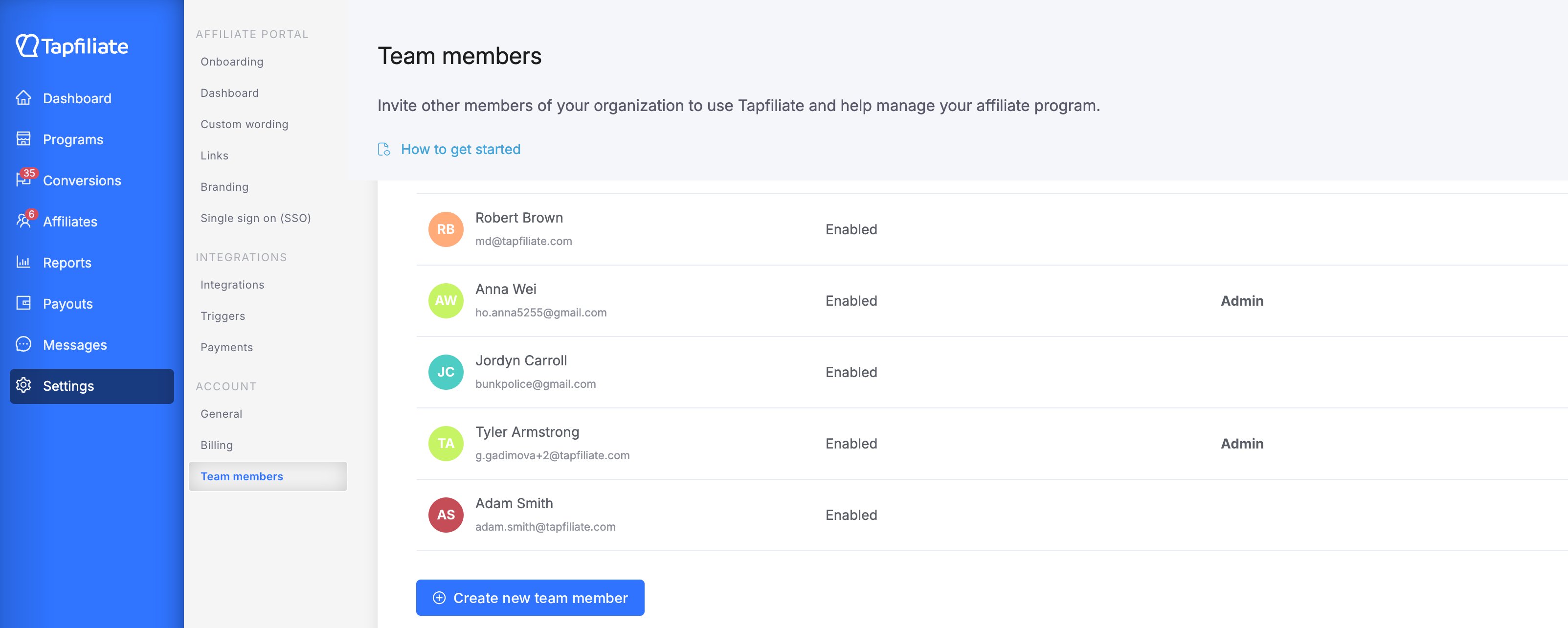
- Go to Settings > Team Members.
- Find the person in the list and look at the Status column.
- Click the status itself – it is a clickable field, not a label – and switch between Enabled and Disabled.
You can change the main Account Holder’s contact information (name, email) in your “Profile.” Remember to hit ‘Save’ after entering the new information.
⚠️ IMPORTANT WORKAROUND (Transferring the Account Holder Role)
The Account Holder role cannot be directly transferred to an existing Team Member. The system blocks the use of an already registered email to protect the account’s integrity and security. If you are trying to assign the Account Holder role to an existing Team Member, you must use a small trick. To successfully transfer the role and clean up the old profiles without contacting support, follow these precise steps:
How to Transfer the Account Holder Role:
- Start the Transfer (+1 Alias): Go to the current Account Holder’s Profile. In the Email field, enter the intended employee’s email address, adding a +1 alias before the @ symbol (e.g., member+1@domain.com).
- Log In: Save the Change. The system will send a password link to the original email address (member@domain.com). The new Account Holder must log in using this link.
- Clear the Old Profile (+2 Alias): Once logged in (using the +1 email), the new Account Holder must:
- Go to the Team Members section.
- Find the old Team Member profile (member@domain.com).
- Change the email of this old profile to a +2 alias (e.g., member+2@domain.com) and save. This frees up the clean email address.
- Final Correction: The new Account Holder must return to their own Profile and correct their email by removing the +1 alias.
FAQ
❓ Do inactive Team Members count against my team limit?
No, only Active team members count against your plan’s user limit. If a user is set to ‘Disabled’ or ‘Inactive’, they do not take up a seat in your plan’s quota. The Account Holder does count, which is why a plan with a single seat has no room for anyone else.❓ I disabled a team member and now I can’t switch them back on. What happened?
Enabling a member takes a seat. If every seat on your plan is already in use, including the Account Holder’s, the request is refused. Free up a seat, or move to a plan with more.❓ Can I delete a team member after they have been added?
No, the option to permanently delete a team member is not available on your side. However, you can disable their access as needed.If the team member needs a permanent deletion of their Tapfiliate account, they must contact the support team directly with their request-this is the only way to delete the profile entirely.
❓ How do I disable a team member’s access?
From Settings > Team Members, click the value in the Status column next to that person and switch it to Disabled. Disabling is recommended when a colleague leaves, as it immediately revokes their login rights while keeping their history intact.❓ Is any set up affected after I delete a team member?
Once a team member is deleted, any triggers they created will be automatically disabled. To keep them working, those triggers will need to be recreated by an active team member. Their API key and any integrations they connected (for example Zapier or the MCP server) also stop working and need to be reconnected by an active team member.If an integration or an automation stopped working around the time you changed someone’s status, it is worth checking whether it was set up with that person’s API key.
❓ Why I can’t add new team members?
Only the Account Holder can add new team members, regardless of whether other team members have Admin access. This is a unique privilege assigned to the main account owner for security reasons.If you are the Account Holder and the option is still unavailable, check your plan’s seats – see Team Member Limits above.
Still need help?
If you have any questions or if something in this guide is unclear, please don’t hesitate to contact us at support@tapfiliate.com-we’re happy to assist!
Next Steps
Now that your team members have their permissions, the next crucial step in the Settings menu is managing your account’s financial health. These tasks often require the Manage Billing permission.- How to View and Download Your Invoices This section guides you through accessing your complete billing history. Learn how to quickly find and download all paid invoices for your financial records.
- How to Upgrade Your Subscription This section explains the simple process of changing your plan level-whether you are scaling up to access premium features like Product Feeds and Private Assets, or adjusting your subscription based on your current needs.