July 20, 2026
- What the Single Sign On (SSO) is and why to use it?
- Why Use Tapfiliate SSO?
- How Tapfiliate SSO Works
- Technical Implementation of Tapfiliate SSO:
- About JWT (JSON Web Token)
- Configuring SSO in Tapfiliate
- SSO Modes explained
- Example (SSO Only Mode)
- Error Handling
- Logging Out Users
- For affiliates: One login gives them access to everything. They don’t need to remember multiple passwords or fill out repeated registration forms.
- For businesses: Simplifies affiliate management, reduces friction, and increases participation in your programs.
- Professional and seamless experience: SSO makes your platform feel integrated and polished, improving engagement and retention.
- Users log in to your system.
- Your system generates a secure JWT with the user’s details.
- The user is redirected to Tapfiliate with the JWT.
- Tapfiliate verifies the token and grants the user access.
Please, note that a developer has to be involved in order to set this up. A JSON Web Token (JWT) is divided into three parts, separated by periods (.):
- Header: Contains metadata about the token.
- Payload (Claims): Includes required user attributes:
- Signature (JWS): Ensures the token is authentic.
Created using:
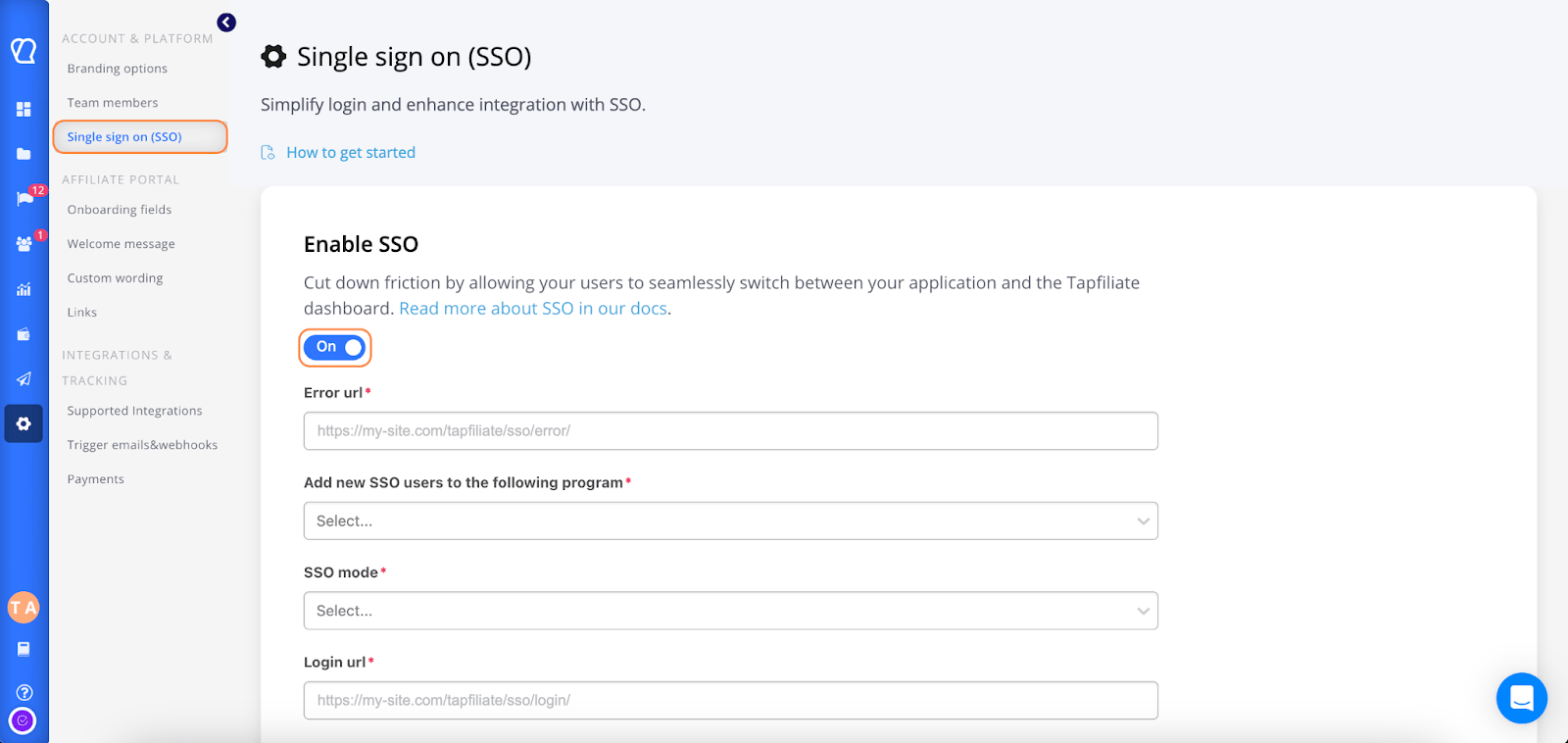
1. SSO Only:
All users must use SSO. Standard Tapfiliate login pages are disabled. 2. Conditional Redirect:
Regular affiliates can use Tapfiliate login, SSO users are redirected to your login page. 3. Ignore Form Logins:
SSO users can only log in through your JWT endpoint; Tapfiliate form logins are ignored.
- User visits the Tapfiliate dashboard.
Tapfiliate detects the user isn’t authenticated. - Redirect to your login URL.
- Your system authenticates the user and generates a JWT.
- Redirect user back to Tapfiliate:
- Tapfiliate grants access.
- The user (affiliate) is logged in to his Tapfiliate account.
return_to in the JWT request.
If a JWT login fails, Tapfiliate redirects to your configured Error URL with a message parameter explaining the problem. Examples: missing firstname/lastname, invalid email, or empty values.
To log out, send users to:https://yourdomain.tapfiliate.com/sso/jwt/logout/
Optionally, include a
return_to parameter to redirect users after logout.