July 20, 2026
Option 1: Tapfiliate Integration tester works
- Step 1: Open the tester
- Step 2: Make a purchase
Option 2: Simulating Test Conversions - Step 1. Add yourself as a test affiliate in Tapfiliate.
- Step 2. Use your test affiliate link to ensure click tracking works.
- Step 3. Complete a test conversion (purchase, signup, etc.).
- Step 4. Verify in the Tapfiliate dashboard that both clicks and conversions are being tracked.
- FAQ
Before you start spreading the word about your affiliate program, it’s very important that you have a solid integration.
This means checking that your scripts/integration can do these two things:
- Track clicks and sort cookies in a user’s browser.
- Track conversions and send that conversion data back to Tapfiliate.
Option 2: Simulating a real customer flow and creating a conversion The Tapfiliate Integration Tester works for all integrations except Wix Stores and REST API. It checks that the tracking codes are correctly added to your website and that no required parameters are missing. The tester does not create real clicks or conversions in your Tapfiliate account, so nothing will appear in your statistics. Simulating a conversion is necessary if you’re using Wix Stores or a REST API integration. It’s also a good alternative if you want to go beyond just checking code placement and accuracy — this way, you can see an actual conversion appear in your Tapfiliate account.
The Tapfiliate integration tester helps you verify that your tracking codes are properly communicating with our platform. No real clicks or conversions will be recorded in your Tapfiliate account. Instead, the tester simply sends a signal confirming that your integration is working and that Tapfiliate’s codes are present on your website. Note: If you’re using Wix Stores or have a REST API integration, the steps below won’t apply. In that case, you’ll need to simulate a test conversion to check that your tracking is working correctly.
Step 1: Open the tester
We’ve created a special link that you can use to check your integration:- Open the Tapfiliate integration tester by following this link
- Another way to launch the tester would be to go to your landing page and then append tap_test=true at the end of the URL and press Enter. You should see a pop-up box at the bottom of your website. This is the Tapfiliate Integration Tester.
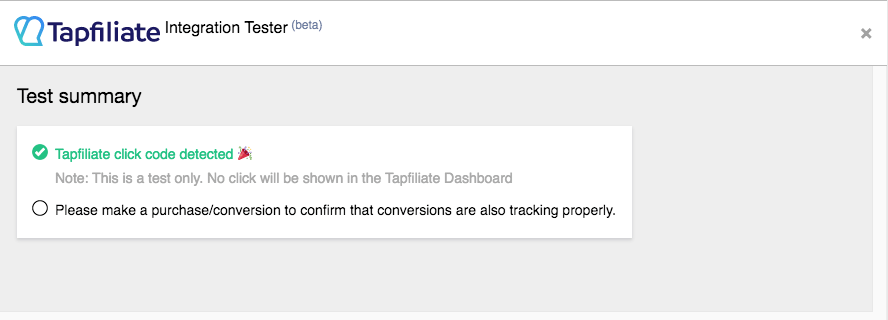
- If you don’t see this box at the bottom of your screen, then the Tapfiliate tracking code is either incorrectly installed on your website or the Tapfiliate tracking parameter is lost in a redirect.
- If you do see the box, proceed to step 2.
Step 2: Make a purchase
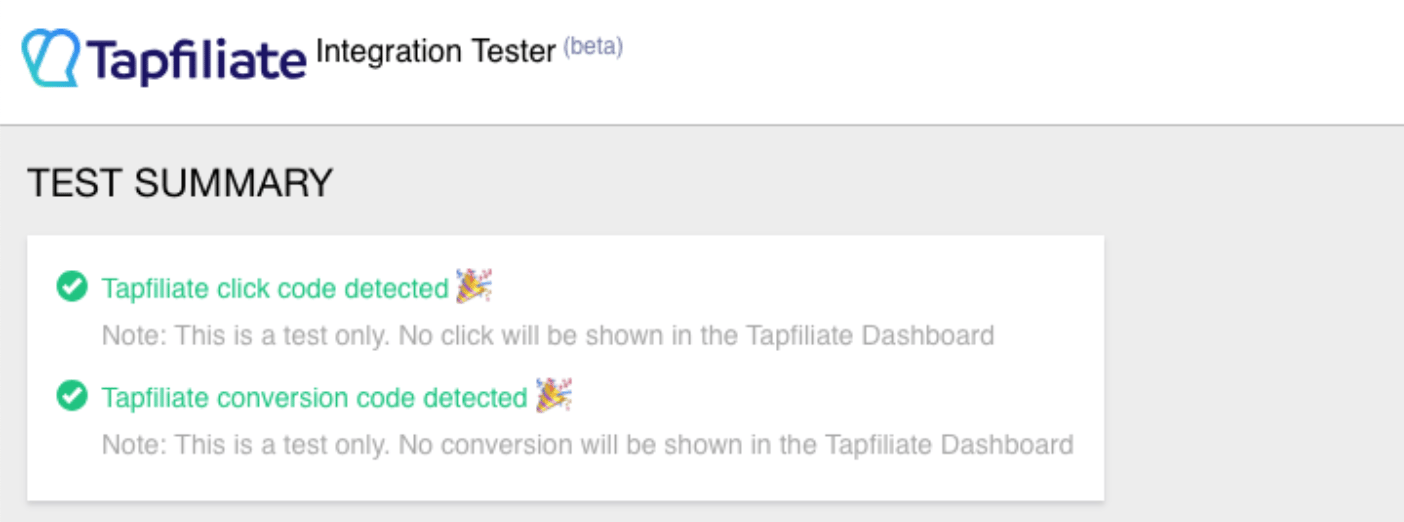
If you see the tester open, make a purchase or conversion (or track a customer) while the tester is open. Note: You don’t always need to make a real purchase. Here are ways to complete a test conversion safely:- Use a 100% discount coupon on checkout (commonly used if coupons are available).
- Create a free product (price = 0) and purchase it—especially convenient for platforms like Shopify or other e-commerce platforms.
- Make a real purchase, if necessary, to test the full flow.
- Consult your developers if your purchase or signup flow is complex—they might provide a test product, sandbox environment, or other safe method.
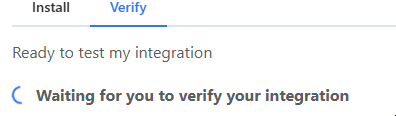
Step 1. Add yourself as a test affiliate in Tapfiliate.
Add yourself as a test affiliate in the system. The simplest way is to do it manually, and we’ve put together a step-by-step guide to help you through the process. See the step-by-step guide.Step 2. Use your test affiliate link to ensure click tracking works.
Grab your test affiliate link and follow it: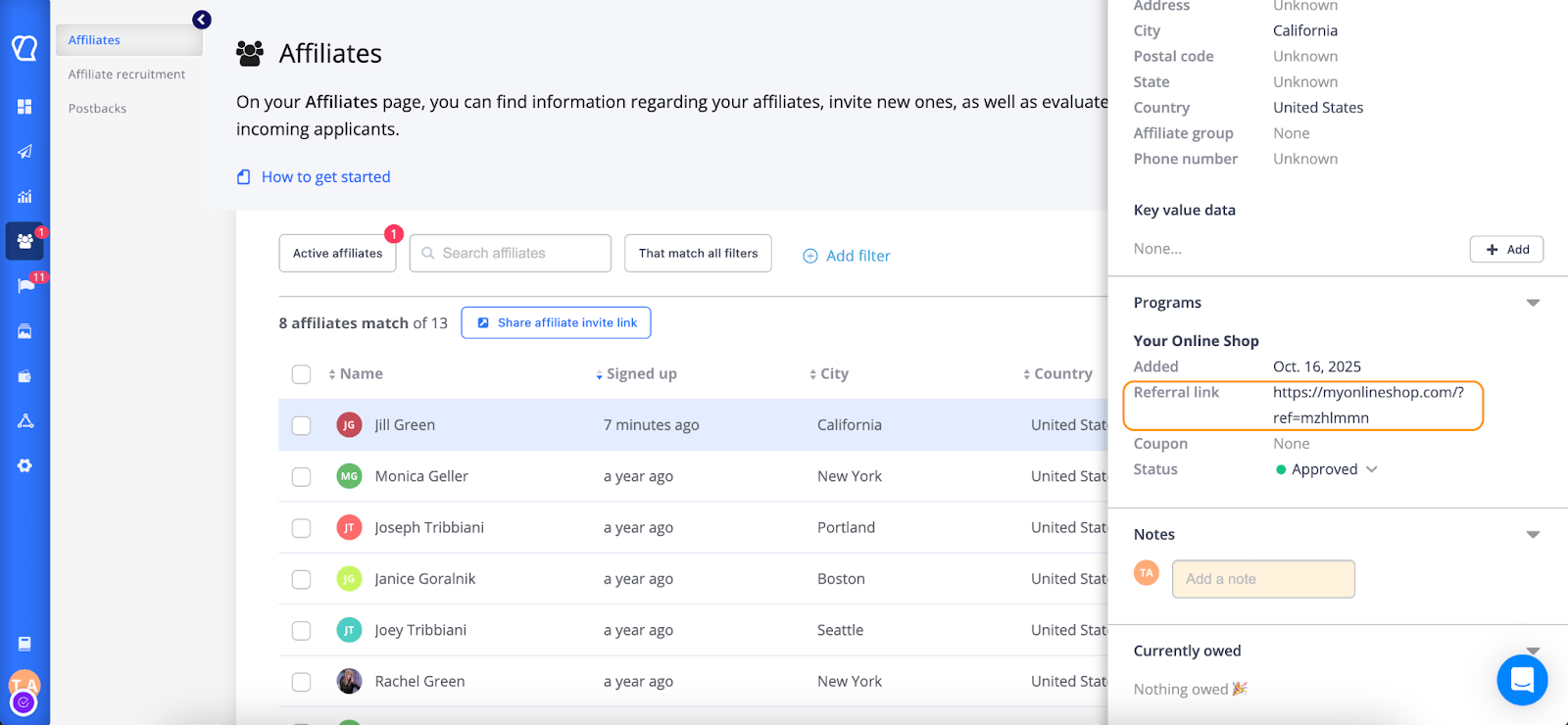
Step 3. Complete a test conversion (purchase, signup, etc.).
After visiting your website via the affiliate link, follow the customer journey and complete a test conversion, such as making a purchase, signing up, or booking a call with your sales team. Note: You don’t always need to make a real purchase. Here are ways to complete a test conversion safely:- Use a 100% discount coupon on checkout (commonly used if coupons are available).
- Create a free product (price = 0) and purchase it—especially convenient for platforms like Shopify or other e-commerce platforms.
- Make a real purchase, if necessary, to test the full flow.
- Consult your developers if your purchase or signup flow is complex—they might provide a test product, sandbox environment, or other safe method.
Step 4. Verify in the Tapfiliate dashboard that both clicks and conversions are being tracked.
Go to Dashboard → Recent Activity and check if your clicks and conversions are showing in the statistics: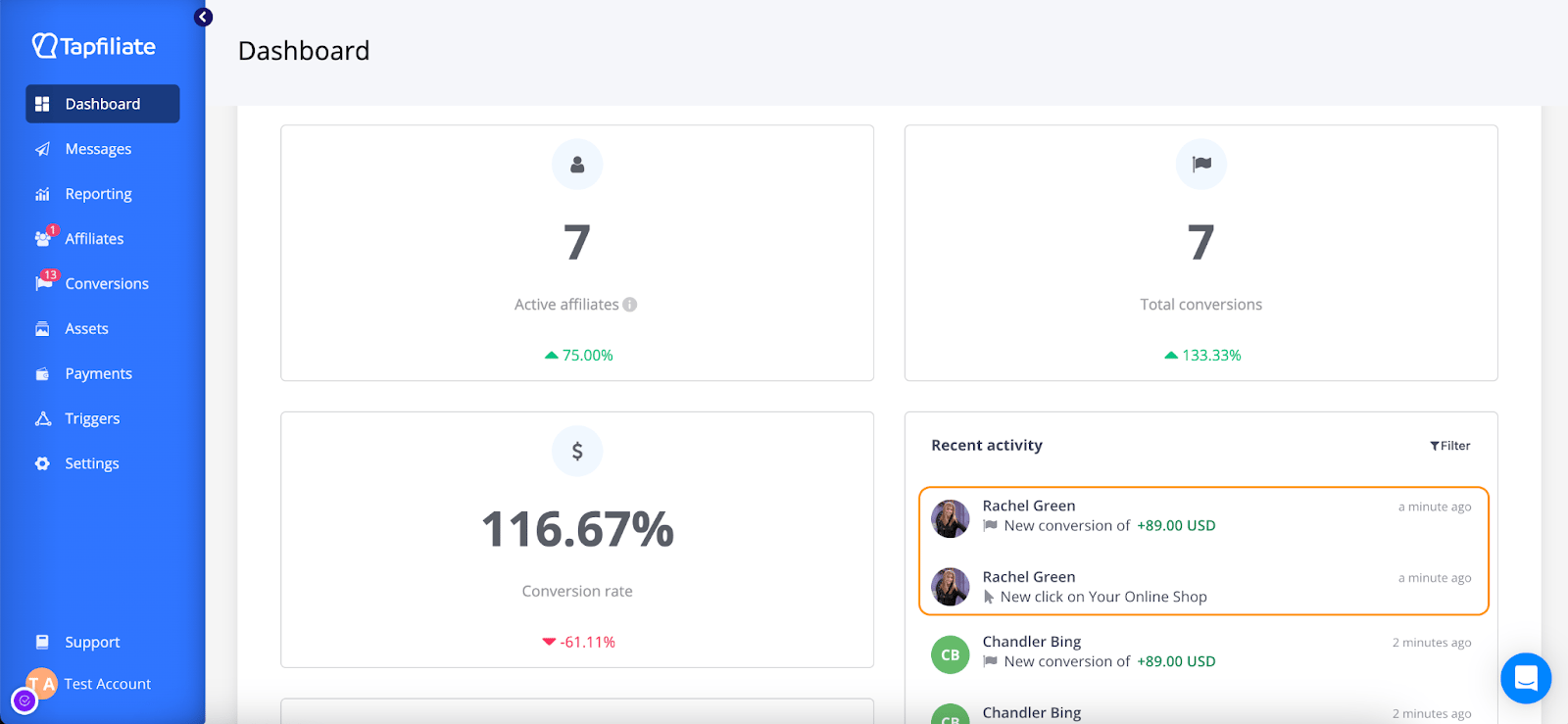
FAQ
❓I created a test conversion, but the tracking doesn’t seem to be working. What should I do?
If you run into issues while testing your integration, please check out our troubleshooting article here for step-by-step guidance.❓What kind of technical support can I get?
Our technical support team is here to help you succeed. We can:- Review your use case and provide recommendations on how to implement your flow effectively.
Point you to relevant code snippets and resources in our technical library. - Outline the types of code your developers would need to create for your specific setup.